
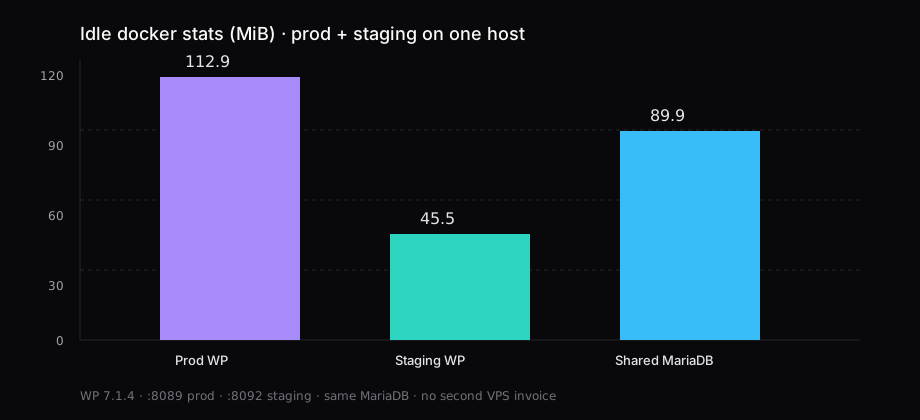
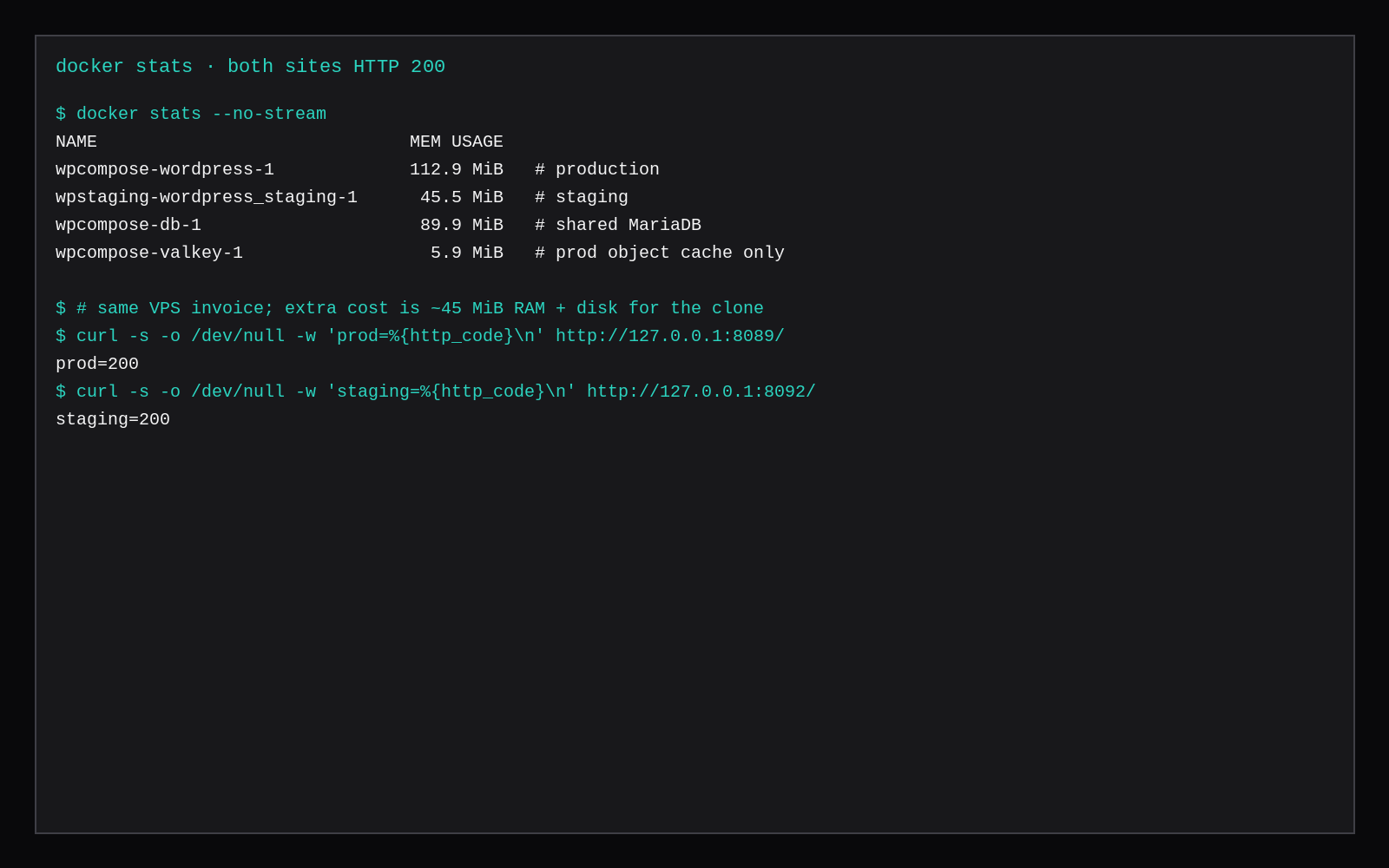
Production WordPress on http://127.0.0.1:8089 and a staging clone on http://127.0.0.1:8092 both returned HTTP 200 on the same Docker host. Idle docker stats sat at 112.9 MiB for production, 45.5 MiB for staging, and 89.9 MiB for the shared MariaDB (median of five samples). Staging used its own database wordpress_staging and its own files volume. After clone, wp search-replace from the prod URL to the staging URL made 18 replacements. blog_public on staging was set to 0. One VPS invoice; the extra cost was about 45 MiB RAM plus disk for the copy.
Managed hosts sell “staging” as a second environment on their platform. On a VPS you already rent, staging is a second site: second docroot, second database (or second Compose service), same monthly bill.
| Production | Staging | |
|---|---|---|
| URL | http://127.0.0.1:8089 | http://127.0.0.1:8092 |
| HTTP | 200 | 200 |
| WordPress container idle | 112.9 MiB | 45.5 MiB |
| Database | wordpress | wordpress_staging (same MariaDB) |
| Shared MariaDB idle | 89.9 MiB | same process |
home / siteurl | …:8089 | …:8092 |
| Search engines | normal | blog_public=0 |
| WordPress | 7.1.4 | 7.1.4 |
Layout on one box
Two clean patterns:
- Second Compose service (this lab): shared MariaDB network, second volume, second loopback port.
- Second Nginx/Apache vhost on LEMP or Nginx WordPress:
staging.example.com→/var/www/staging, PHP-FPM pool, its own DB.
Prefer a subdomain or a separate port over a /staging path. Paths fight permalinks and cookie scope. Keep staging on loopback, Tailscale, or basic auth until you want a client to see it.
Clone production into staging
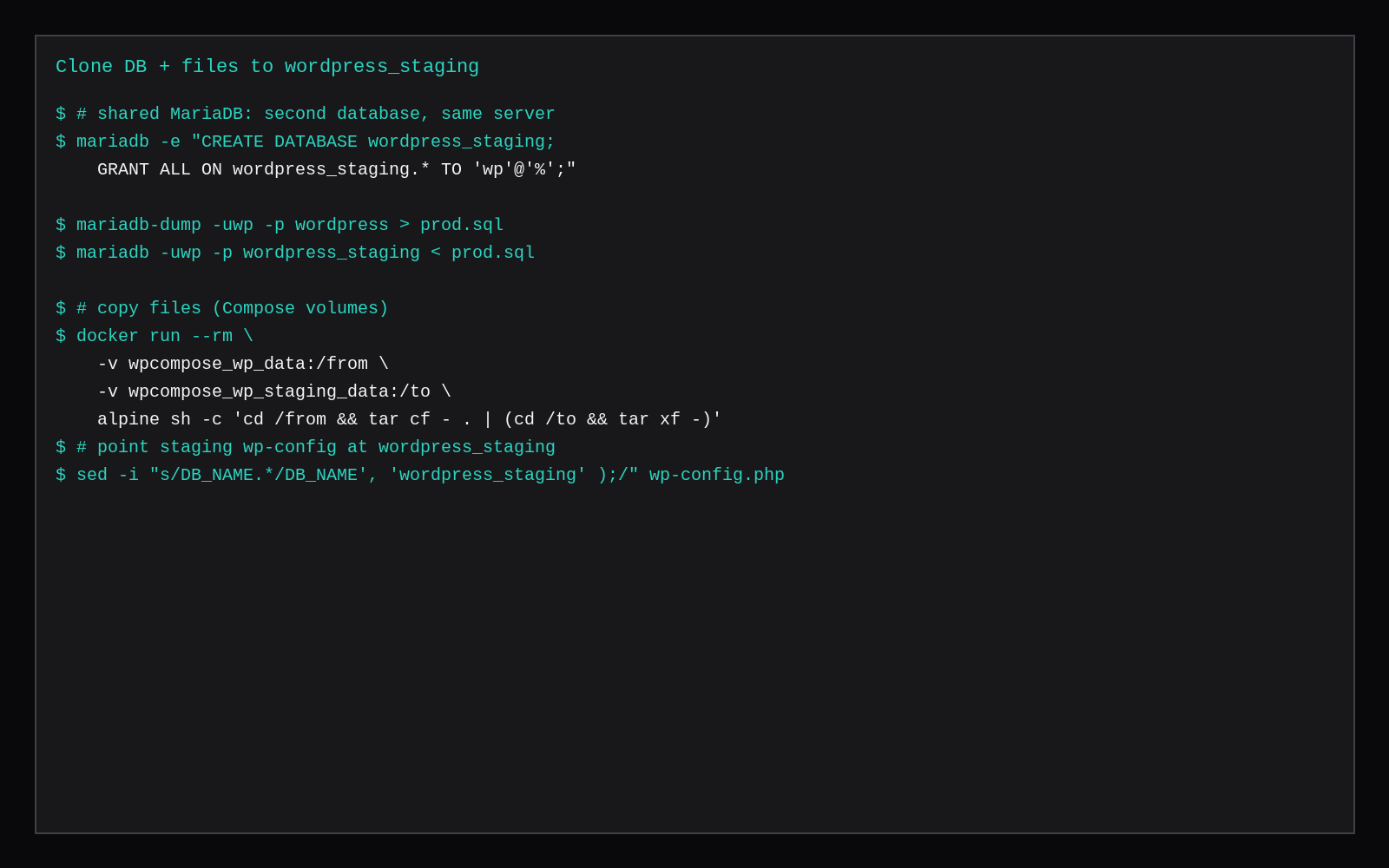
Create the database, import a dump, copy files, then rewrite URLs with WP-CLI search-replace.
# on the shared MariaDB (Compose: docker compose exec db …)
mariadb -uroot -p -e "
  CREATE DATABASE wordpress_staging;
  GRANT ALL ON wordpress_staging.* TO 'wp'@'%';
  FLUSH PRIVILEGES;"

mariadb-dump -uwp -p wordpress > prod.sql
mariadb -uwp -p wordpress_staging < prod.sql
Copy the docroot (Compose volumes shown; on bare metal use rsync -a):
docker run --rm \
  -v wpcompose_wp_data:/from \
  -v wpcompose_wp_staging_data:/to \
  alpine:3.20 \
  sh -c 'cd /from && tar cf - . | (cd /to && tar xf -)'

# staging wp-config must name the staging database
sed -i "s/define( *'DB_NAME'.*/define( 'DB_NAME', 'wordpress_staging' );/" \
  /path/to/staging/wp-config.php
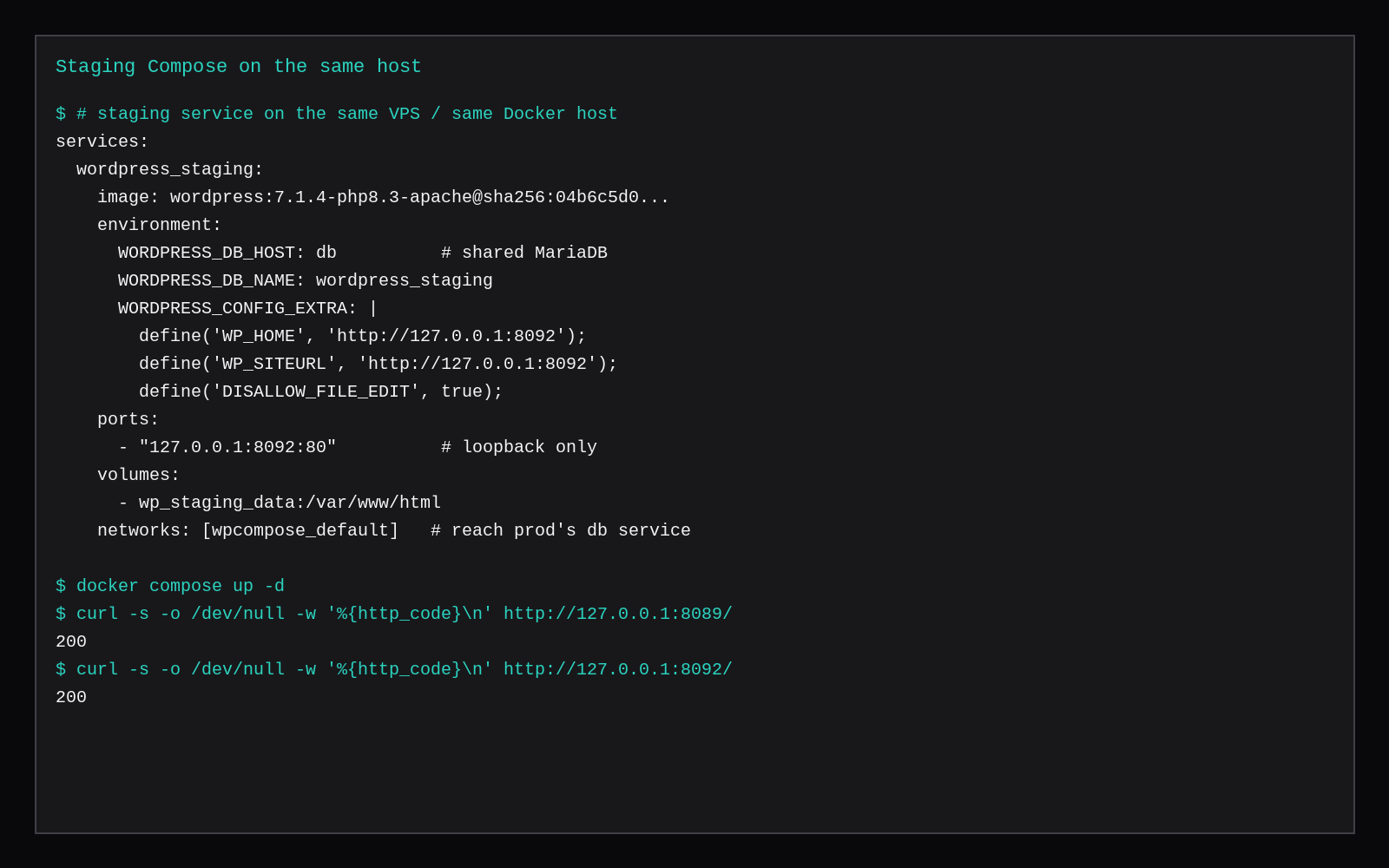
Bring the staging container (or vhost) up. This lab’s service excerpt:
services:
  wordpress_staging:
    image: wordpress:7.1.4-php8.3-apache@sha256:04b6c5d0dd2c3909dc6f835b1b666b1fb7d72d81b19717283c6604da2b11f40e
    environment:
      WORDPRESS_DB_HOST: db
      WORDPRESS_DB_USER: wp
      WORDPRESS_DB_PASSWORD: choose-a-long-secret
      WORDPRESS_DB_NAME: wordpress_staging
      WORDPRESS_CONFIG_EXTRA: |
        define('WP_HOME', 'http://127.0.0.1:8092');
        define('WP_SITEURL', 'http://127.0.0.1:8092');
        define('DISALLOW_FILE_EDIT', true);
    ports:
      - "127.0.0.1:8092:80"
    volumes:
      - wp_staging_data:/var/www/html
    networks:
      - wpcompose_default   # same network as production's db
Production stayed on Compose WordPress at :8089. Staging joined that network so db resolved without publishing MariaDB on the host.
Rewrite URLs, then lock staging down
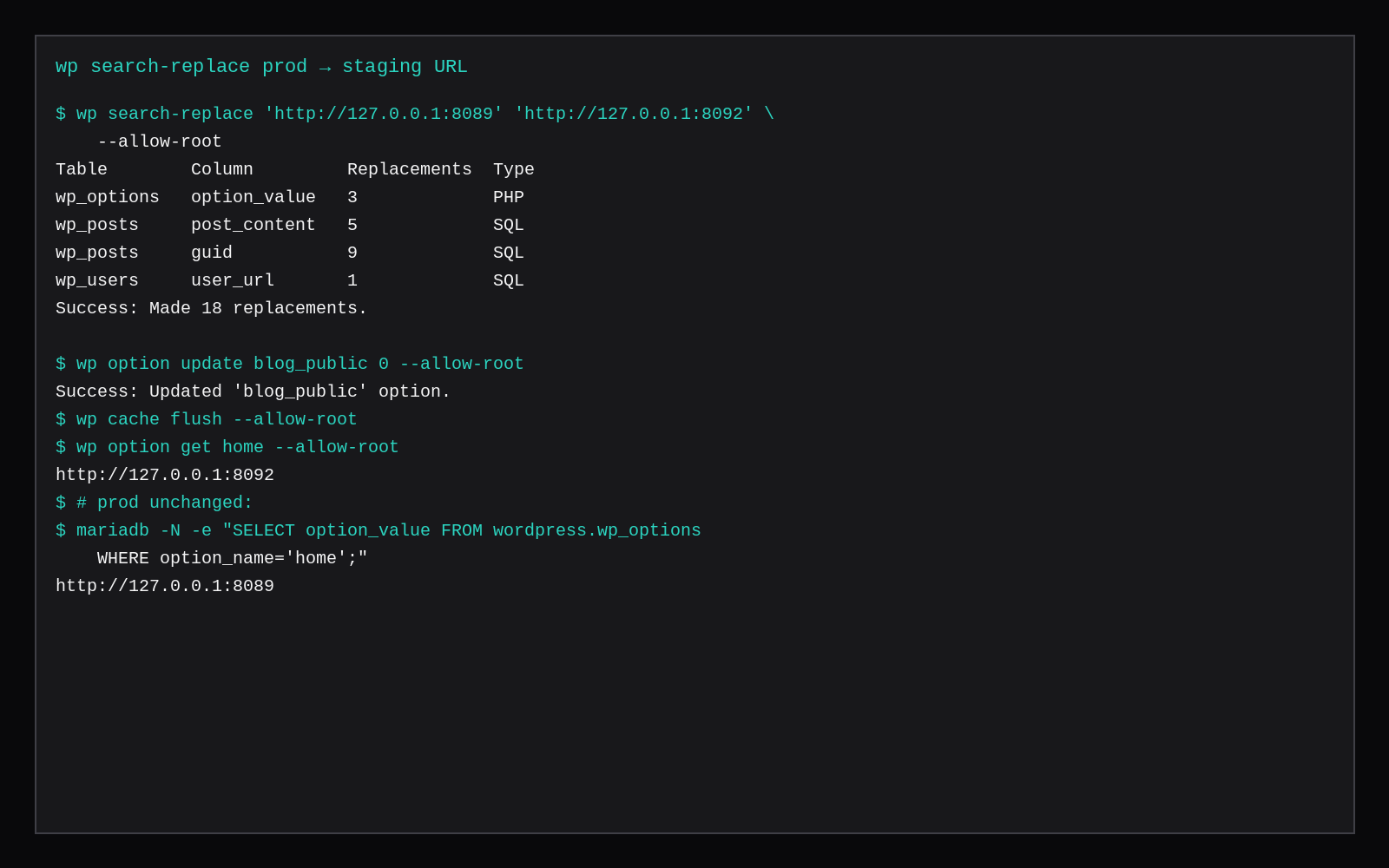
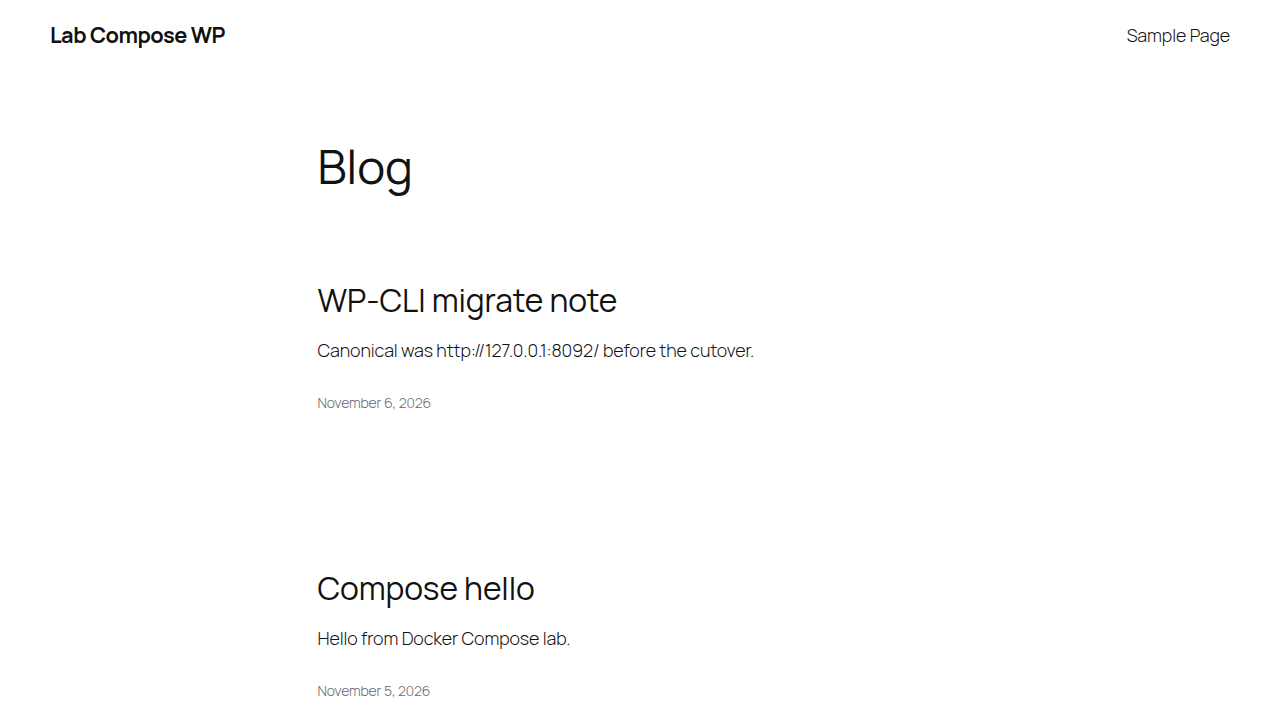
wp search-replace 'http://127.0.0.1:8089' 'http://127.0.0.1:8092' --allow-root
# Success: Made 18 replacements.
# (3 PHP in wp_options, 5 post_content, 9 guid, 1 user_url in this run)

wp option update blog_public 0 --allow-root
wp cache flush --allow-root

wp option get home
# http://127.0.0.1:8092
Production home stayed on :8089. Confirm with a query against both schemas if you share one MariaDB.
If object cache runs on production, give staging its own prefix or disable Redis there so a flush on staging cannot wipe prod keys. This lab set WP_REDIS_DISABLED on staging.
Optional: HTTP basic auth in Caddy/Nginx, or bind staging only to Tailscale. DISALLOW_FILE_EDIT blocks the theme/plugin file editors in wp-admin.
Skip these
| Skip this | What to do |
|---|---|
| One database for prod and staging | Separate schema (wordpress_staging) so a bad migration cannot erase prod rows |
| Testing plugins on production | Break staging first |
Publishing staging on 0.0.0.0 with no auth | Loopback, VPN, or basic auth |
| Skipping search-replace | Serialized options and post bodies keep the prod host |
| Sharing one Redis prefix | Separate prefix or disable object cache on staging |
| Expecting zero extra RAM | Budget ~40–120 MiB idle for a second small WP container or PHP pool |
When a second VPS still makes sense
A plugin that can OOM the kernel, a compliance rule that forbids prod data on a shared box, or a staging load test that would steal CPU from live traffic: buy another Compute Instance. For theme tweaks, plugin updates, and client previews, the same 2 GB VPS is enough when MariaDB and PHP workers still have headroom (2 GB idle memory).
Staging on one disk is still a clone problem
Same-VPS staging copies the files and the database, then rewrites URLs so cookies and assets do not leak between hosts. WP-CLI search-replace with --all-tables (and a dry run first) is the usual path; subdomain or separate vhost keeps the DocumentRoot apart. The risk is shared MySQL credentials and a backup that only snapshots production. Give staging its own database user, block it from search engines (noindex or HTTP auth), and never point DNS at staging the way you point production. Disk doubles for media-heavy sites; budget that before you call the “free” second site free.
FAQ
How do I push staging back to production? Dump staging, import over a maintenance window (or into a new schema and cut DNS), run search-replace the other direction, flush caches. Practice once on a throwaway copy.
Subdomain DNS? Point staging.example.com at the VPS and terminate TLS with Caddy/Nginx. The clone steps stay the same; only the URL string in search-replace changes.
Multisite? Clone is harder (domain mapping, DOMAIN_CURRENT_SITE). Use WP-CLI’s multisite search-replace flags and read the help text before you run live.
Panel staging button? Fine when it creates a real second DB and docroot. This post is the DIY shape when the panel only gives you one site, or you are on plain Compose/LEMP.
Staging on the same VPS is a copy with a fence around it. You pay for that fence in RAM and in the habit of leaving production alone until staging proves the change.