
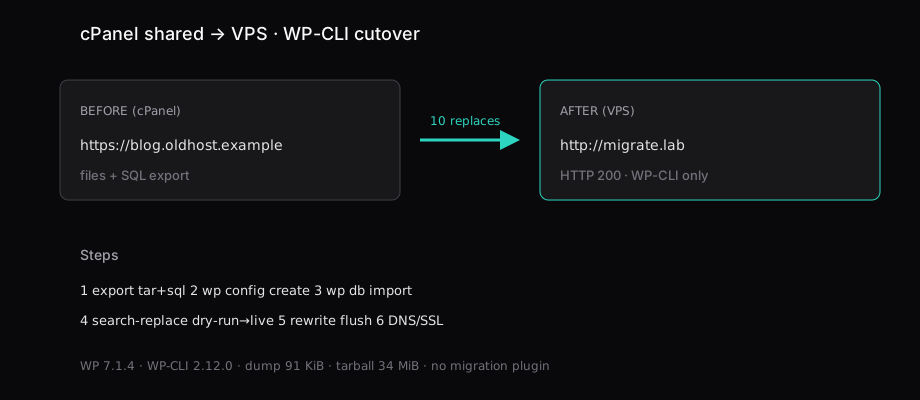
A WordPress 7.1.4 site that lived at https://blog.oldhost.example on a cPanel-shaped shared host landed on a VPS at http://migrate.lab using only WP-CLI after the files and database arrived. The export was a 34 MiB public_html.tar.gz and a 91 KiB SQL dump. On the VPS, wp db import loaded the dump, wp search-replace made 10 replacements (dry-run matched live), and the homepage returned HTTP 200 with the old title intact. No All-in-One Migration, no Duplicator.
cPanel’s job ends when you have those two artefacts. The VPS job is unpack, point wp-config.php at a new database, import, rewrite URLs without breaking PHP-serialized options, flush rewrites, then cut DNS.
| Before (shared) | After (VPS) | |
|---|---|---|
home / siteurl | https://blog.oldhost.example | http://migrate.lab |
| Search-replace | — | 10 (dry-run = live) |
| Homepage | shared host | HTTP 200 on VPS |
| WordPress | 7.1.4 | 7.1.4 |
| Tooling | cPanel File Manager + phpMyAdmin (or SSH) | WP-CLI 2.12.0 only |
| Migration plugin | — | none |
What you take from cPanel
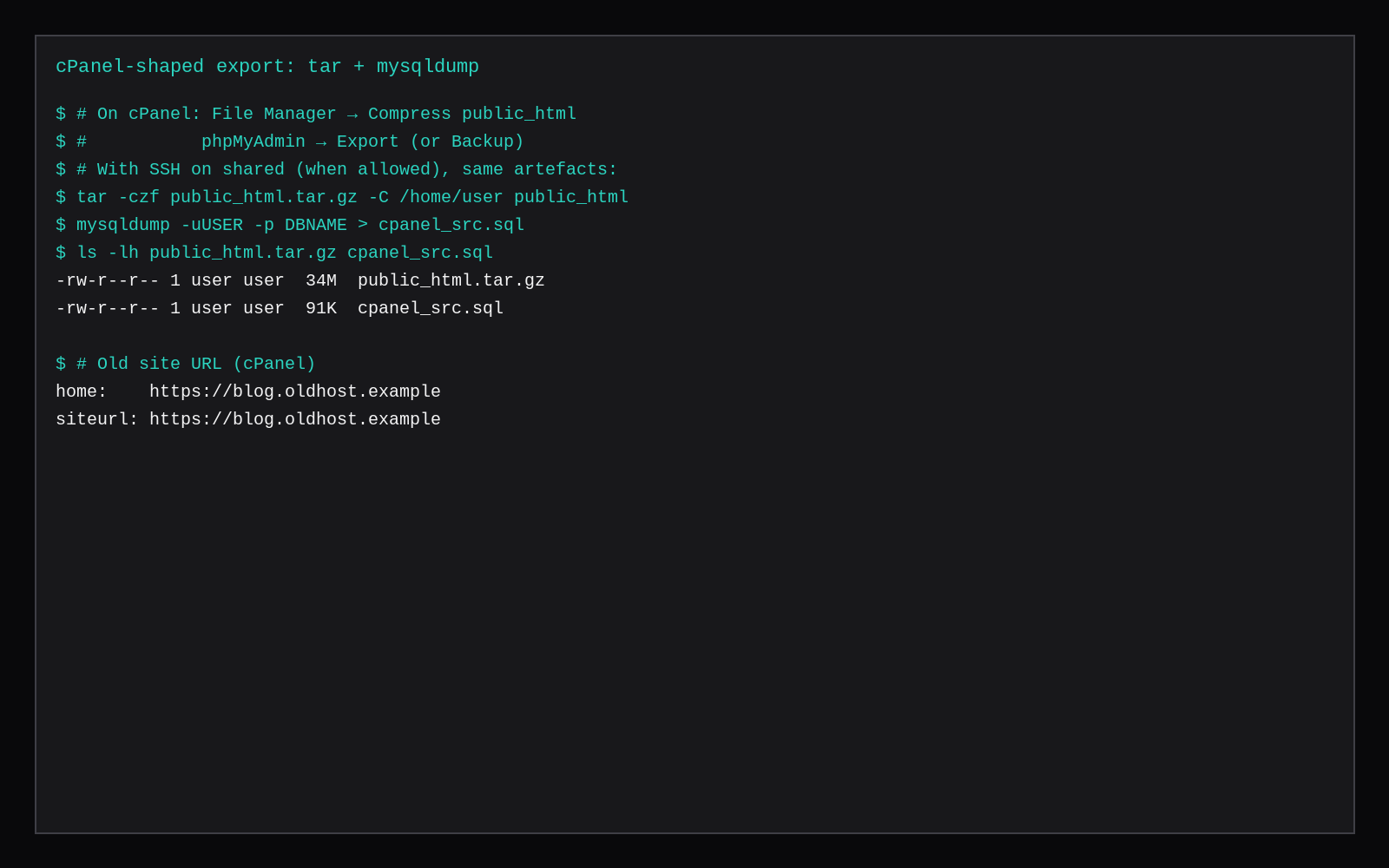
From the panel (or SSH if the host allows it):
- Files: zip or tar of
public_html(or the addon-domain docroot). - Database: phpMyAdmin → Export, or cPanel Backup, or
mysqldump.
# SSH shape of the same two files
tar -czf public_html.tar.gz -C /home/USER public_html
mysqldump -uDBUSER -p DBNAME > cpanel_src.sql
Leave behind: cPanel email accounts (recreate on the VPS or at Google/Microsoft), the Softaculous “migrate” button, and any “fix and replace” in phpMyAdmin. That last one corrupts serialized PHP strings; WP-CLI search-replace exists for that reason.
Cron jobs listed in cPanel need a new crontab on the VPS (wp cron event is not a full replacement for system cron that called wget).
Prepare the VPS
Install a LEMP-shaped stack (LEMP or Nginx WordPress), create an empty database and user, install WP-CLI, and point an Nginx server block at an empty docroot. A marketplace Compute Instance is enough for one site at 2 GB when you size PHP-FPM honestly.
sudo mysql -e "CREATE DATABASE migrate_lab;
  CREATE USER 'migratelab'@'localhost' IDENTIFIED BY 'choose-a-long-secret';
  GRANT ALL ON migrate_lab.* TO 'migratelab'@'localhost';
  FLUSH PRIVILEGES;"
Import with WP-CLI only
sudo mkdir -p /var/www/migrate.lab
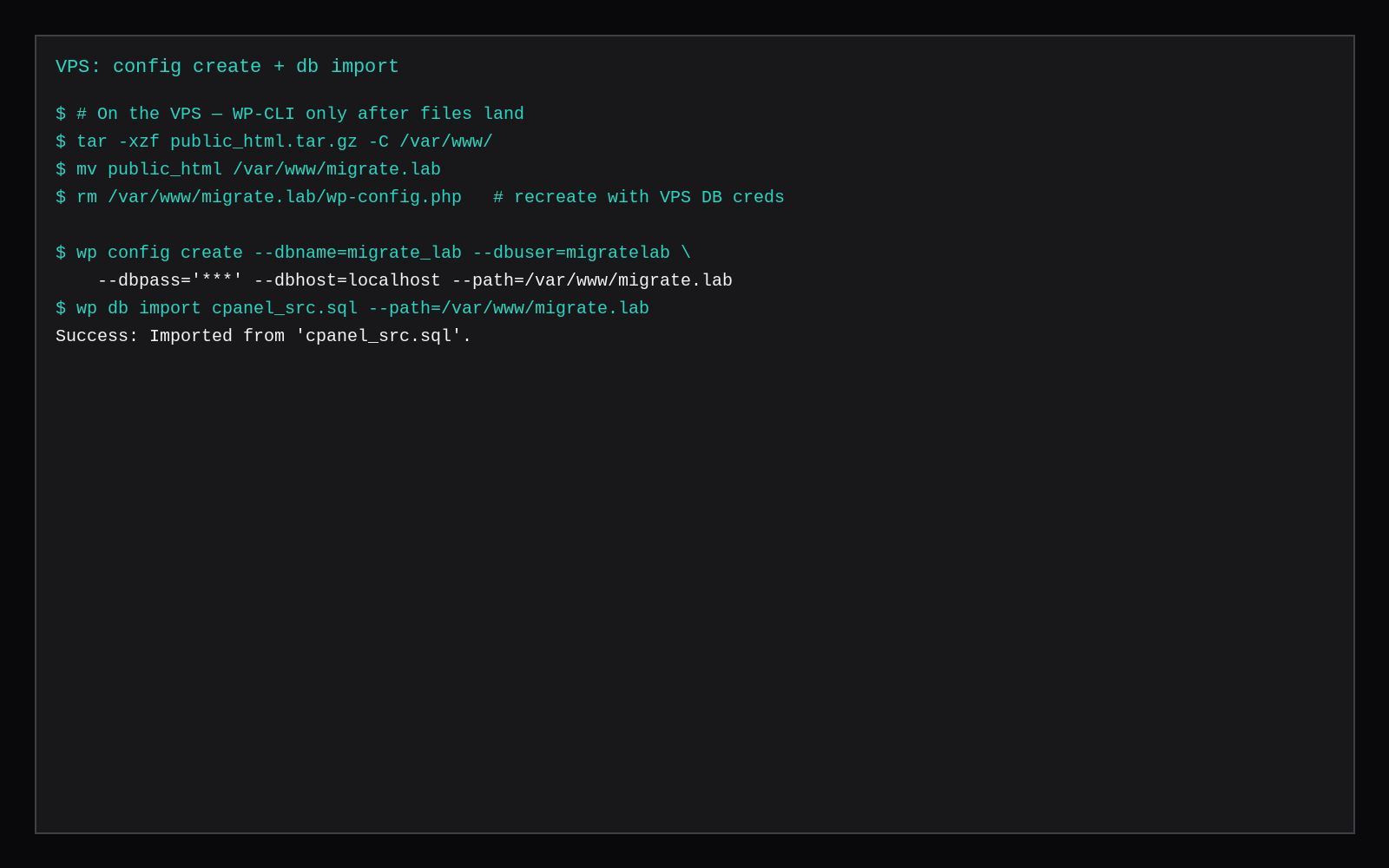
sudo tar -xzf public_html.tar.gz -C /tmp
sudo rsync -a /tmp/public_html/ /var/www/migrate.lab/
sudo rm -f /var/www/migrate.lab/wp-config.php

cd /var/www/migrate.lab
sudo -u www-data wp config create \
  --dbname=migrate_lab --dbuser=migratelab \
  --dbpass='choose-a-long-secret' --dbhost=localhost

sudo -u www-data wp db import /path/to/cpanel_src.sql
Recreate wp-config.php for the VPS database user. The shared host password almost never matches. Salts can stay or rotate.
Rewrite the old hostname
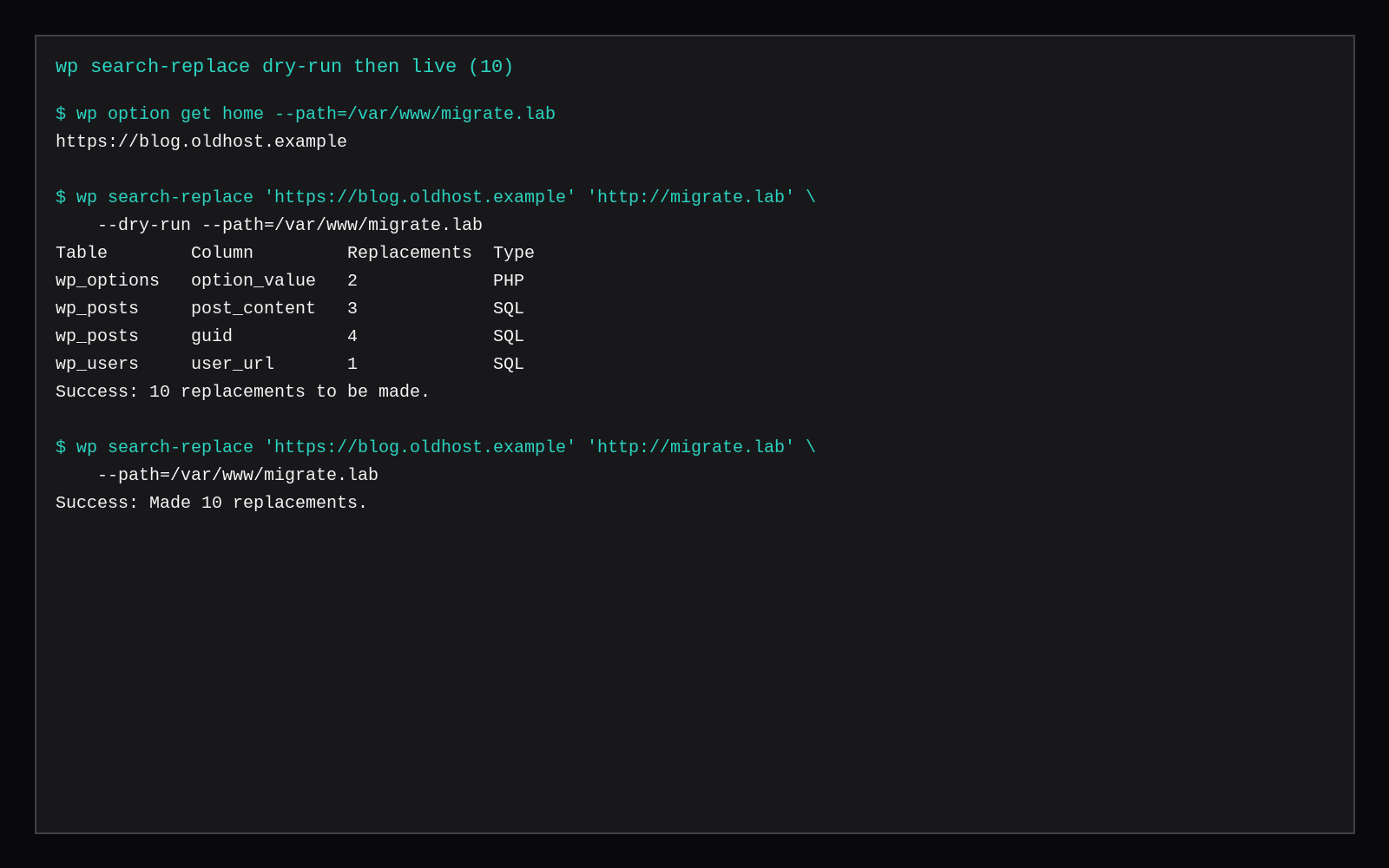
sudo -u www-data wp option get home
# https://blog.oldhost.example

sudo -u www-data wp search-replace \
  'https://blog.oldhost.example' 'http://migrate.lab' --dry-run
# Success: 10 replacements to be made.

sudo -u www-data wp search-replace \
  'https://blog.oldhost.example' 'http://migrate.lab'
# Success: Made 10 replacements.

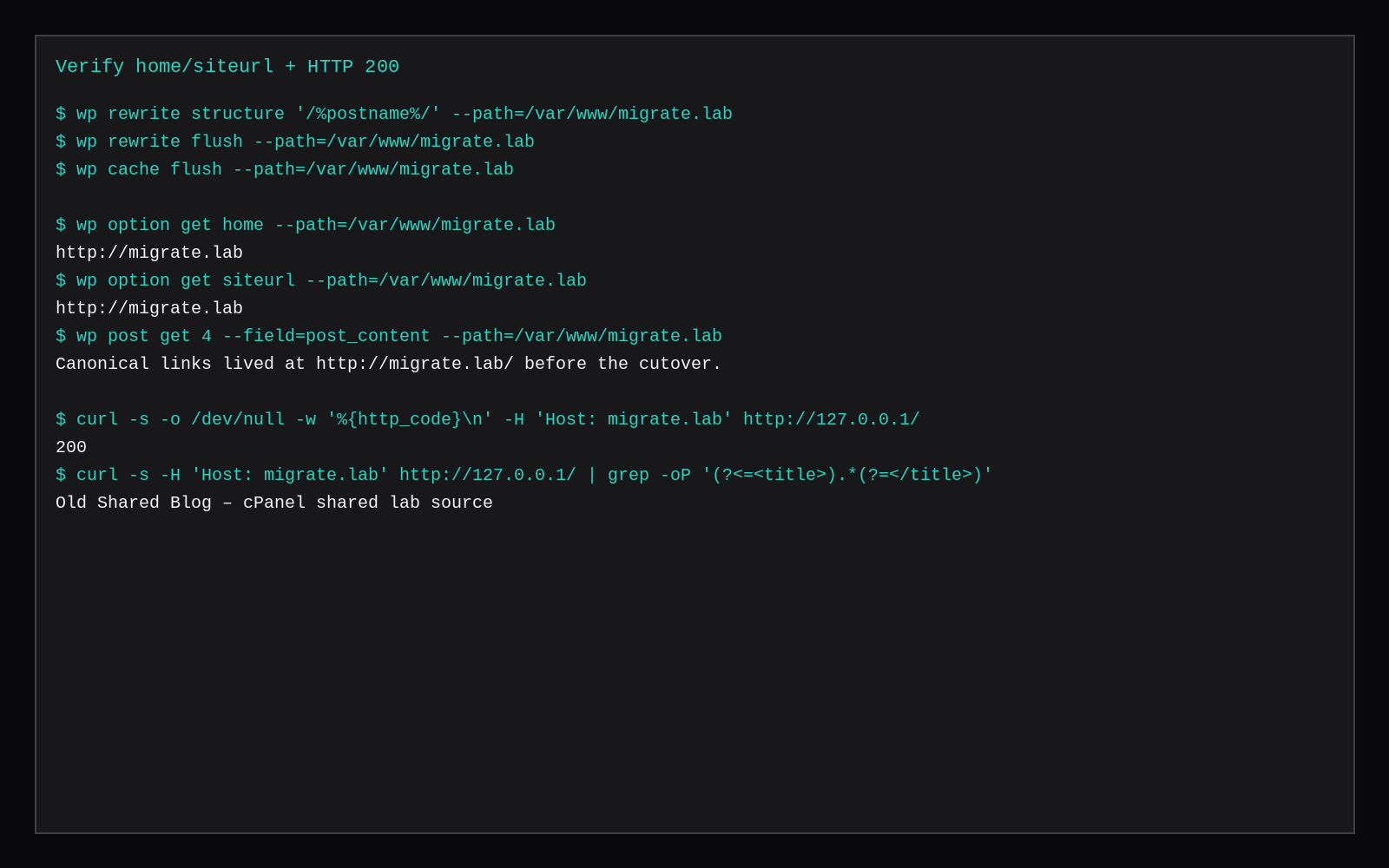
sudo -u www-data wp rewrite structure '/%postname%/'
sudo -u www-data wp rewrite flush
sudo -u www-data wp cache flush
Match scheme (http vs https) and www vs bare domain. Run a second pass if the dump mixed both. This lab’s ten replacements covered wp_options (PHP), post content, guids, and a user URL.
Prove it, then cut DNS
sudo -u www-data wp option get home
# http://migrate.lab

curl -s -o /dev/null -w '%{http_code}\n' -H 'Host: migrate.lab' http://127.0.0.1/
# 200
Lower TTL at the registrar a day ahead. Point the A/AAAA record at the VPS. Issue TLS with Certbot when the name resolves (certbot --nginx -d blog.example.com). Keep the cPanel account readable until you have a week of clean logs.
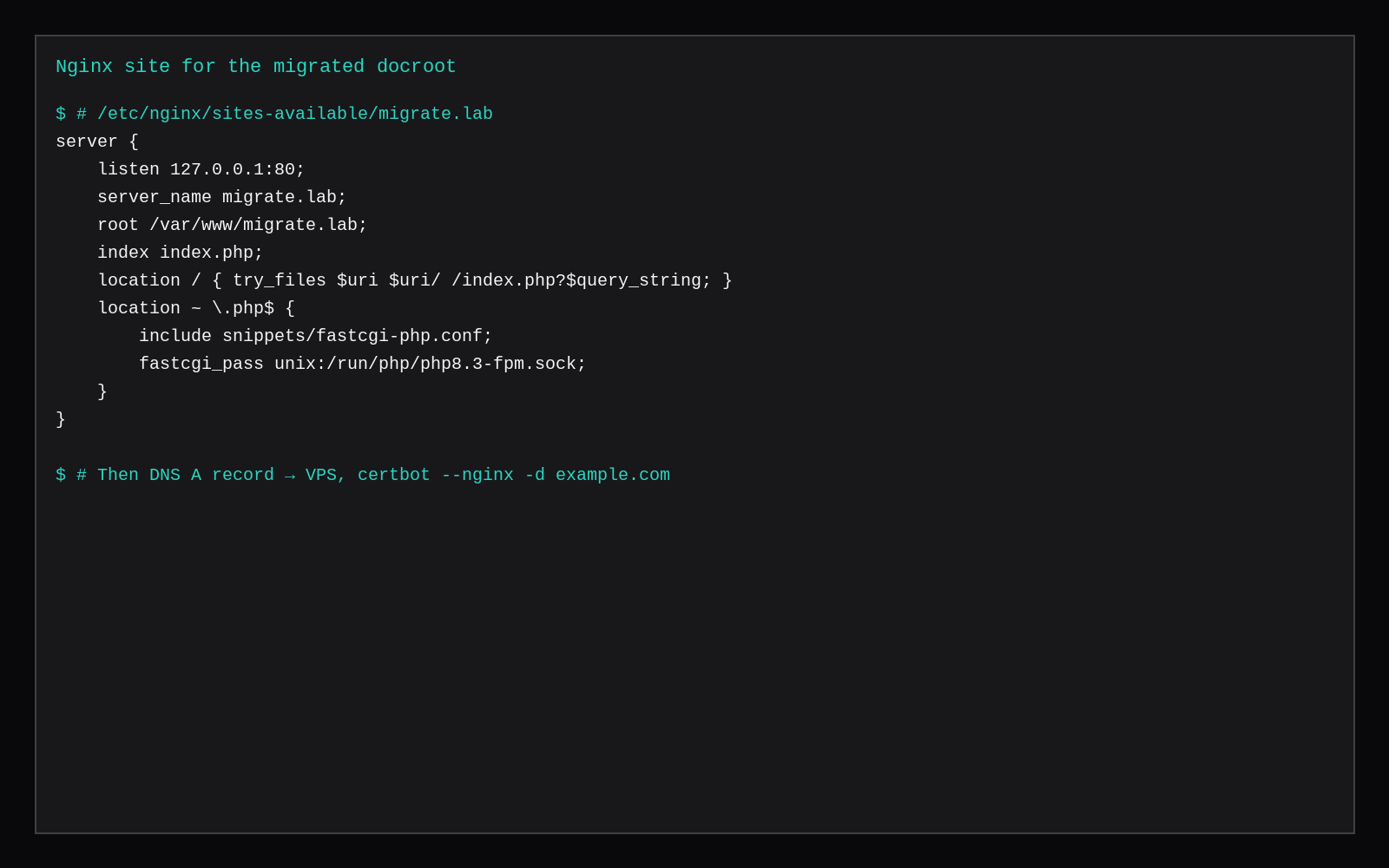
Nginx shape used here:
server {
    listen 80;
    server_name migrate.lab;   # then your real hostname
    root /var/www/migrate.lab;
    index index.php;
    location / { try_files $uri $uri/ /index.php?$query_string; }
    location ~ \.php$ {
        include snippets/fastcgi-php.conf;
        fastcgi_pass unix:/run/php/php8.3-fpm.sock;
    }
}
Skip these
| Skip this | What to do |
|---|---|
| phpMyAdmin find-and-replace on URLs | wp search-replace with --dry-run first |
Copying wp-config.php DB passwords unchanged | wp config create (or edit) for the VPS database |
| Skipping dry-run | Compare counts, then run live |
| Cutting DNS before HTTP 200 on the VPS hostname | Hosts file or temporary A record test first |
| Expecting cPanel email to follow the files | Recreate mail or keep it at the registrar |
What leaves cPanel and what you recreate
A typical cPanel exit is files (public_html), MySQL dump, email if you still host it, and DNS. On the VPS you recreate the vhost, PHP version, TLS, and cron. WP-CLI carries the WordPress half: import the dump, search-replace the old hostname, flush rewrite rules, and reinstall plugins only when the zip tree did not come across clean. Cron jobs that lived in cPanel’s interface become system crontab or a panel on the new host. Keep one rollback tarball of the old account until the first successful deploy and a real browser pass on forms and admin-ajax.
FAQ
Do I need a migration plugin? Only if you prefer a UI. Files + SQL + WP-CLI cover a normal single site.
What about email? DNS MX is separate from the web docroot. Plan mail before you drop the cPanel account.
Multisite? Domain mapping and DOMAIN_CURRENT_SITE need extra search-replace passes. Read wp help search-replace for --network.
Rollback? Keep the cPanel site and the SQL dump until the VPS has run cleanly. Point DNS back if needed.
Staging first? Clone to a staging site on the same VPS, then repeat search-replace toward production.
Shared hosting sold you a panel. The VPS sells you root and a quieter invoice (hosting vs VPS). WP-CLI turns the export you already know how to download into a site that answers on the new box, with one less plugin in wp-content.