
Linkstack Instant App
Self-hosted LinkStack VPS hosting
LinkStack is an open-source link-in-bio page with themes, custom links and an admin desk. Compare live VPS prices, CPU, RAM, disk and regions, launch with a prepared admin login on the plan you choose, and keep root access.

Linkstack
Instant App on marketplace VPS
Live marketplace offers
Compare Linkstack VPS plans
Choose billing and size, compare providers side by side, pick a location, then launch.
Inside Linkstack
LinkStack is a self-hosted link-in-bio page with themes, custom buttons and analytics. Use it instead of paying for Linktree. Sign in as admin after boot, edit your page and publish links. No Instant App form fields are required at create time.
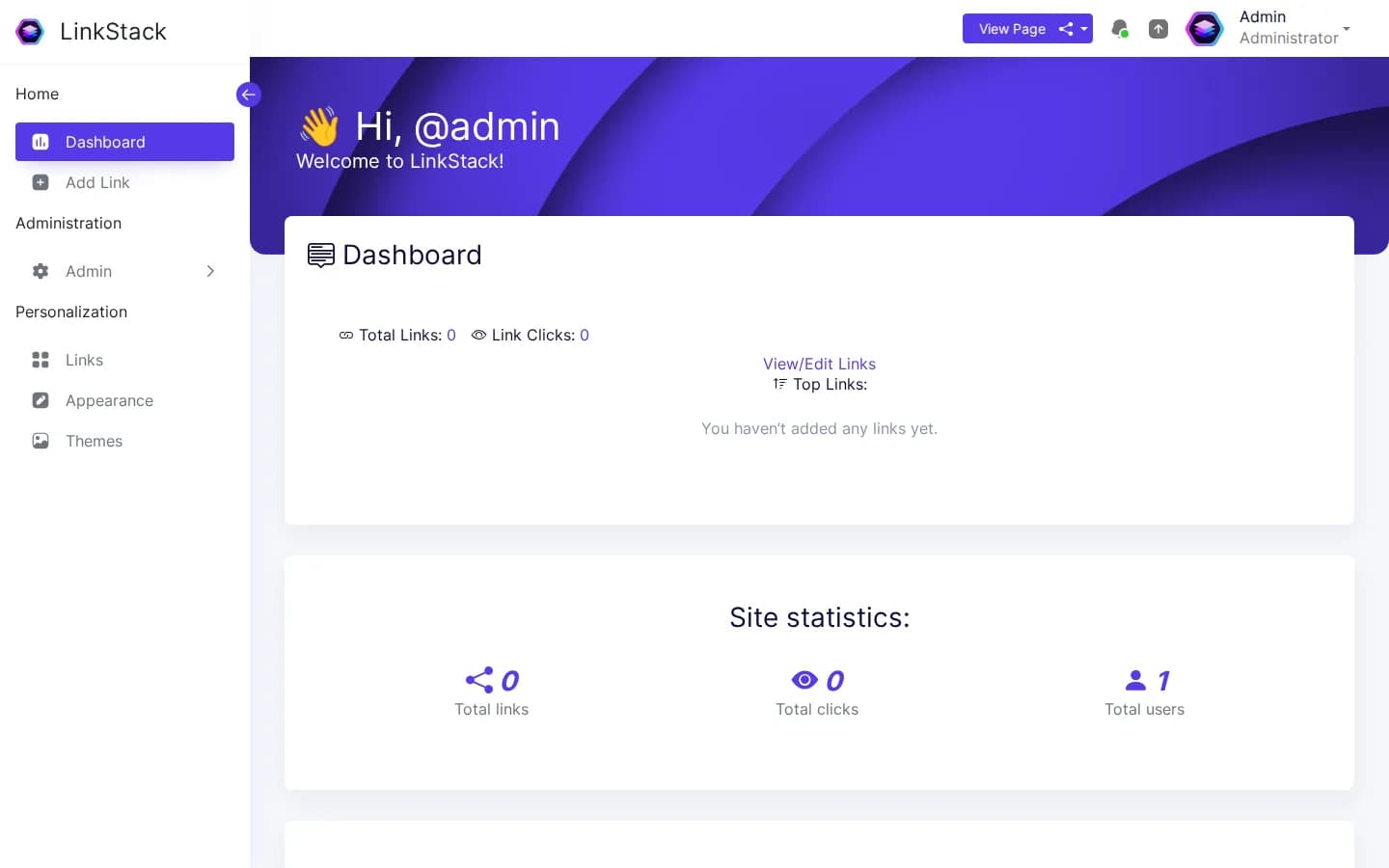
Dashboard after login
Open LinkStack and sign in with the prepared admin account. Your desk is ready.
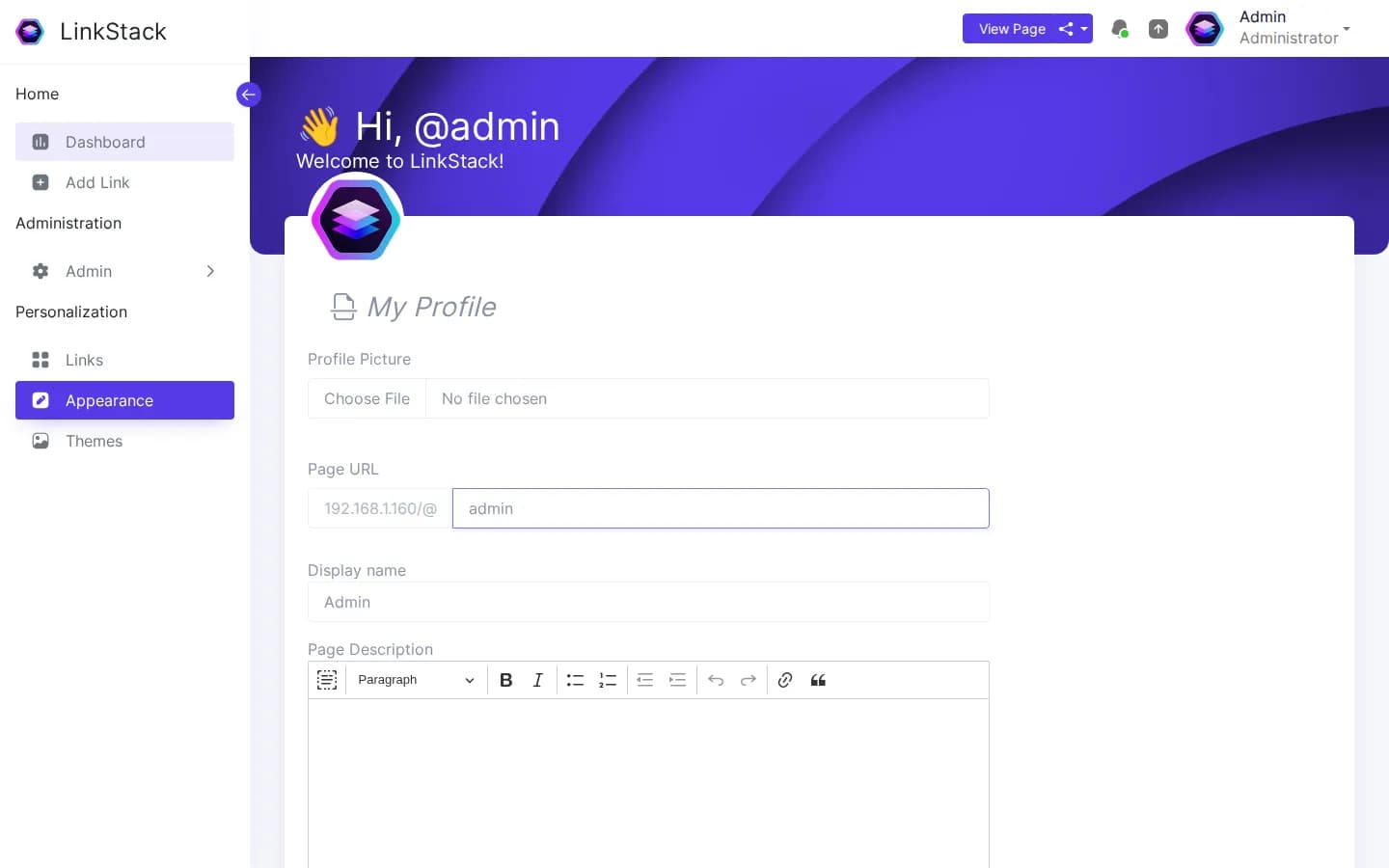
Edit your bio page
Add links, change titles and tune the public page that visitors see.
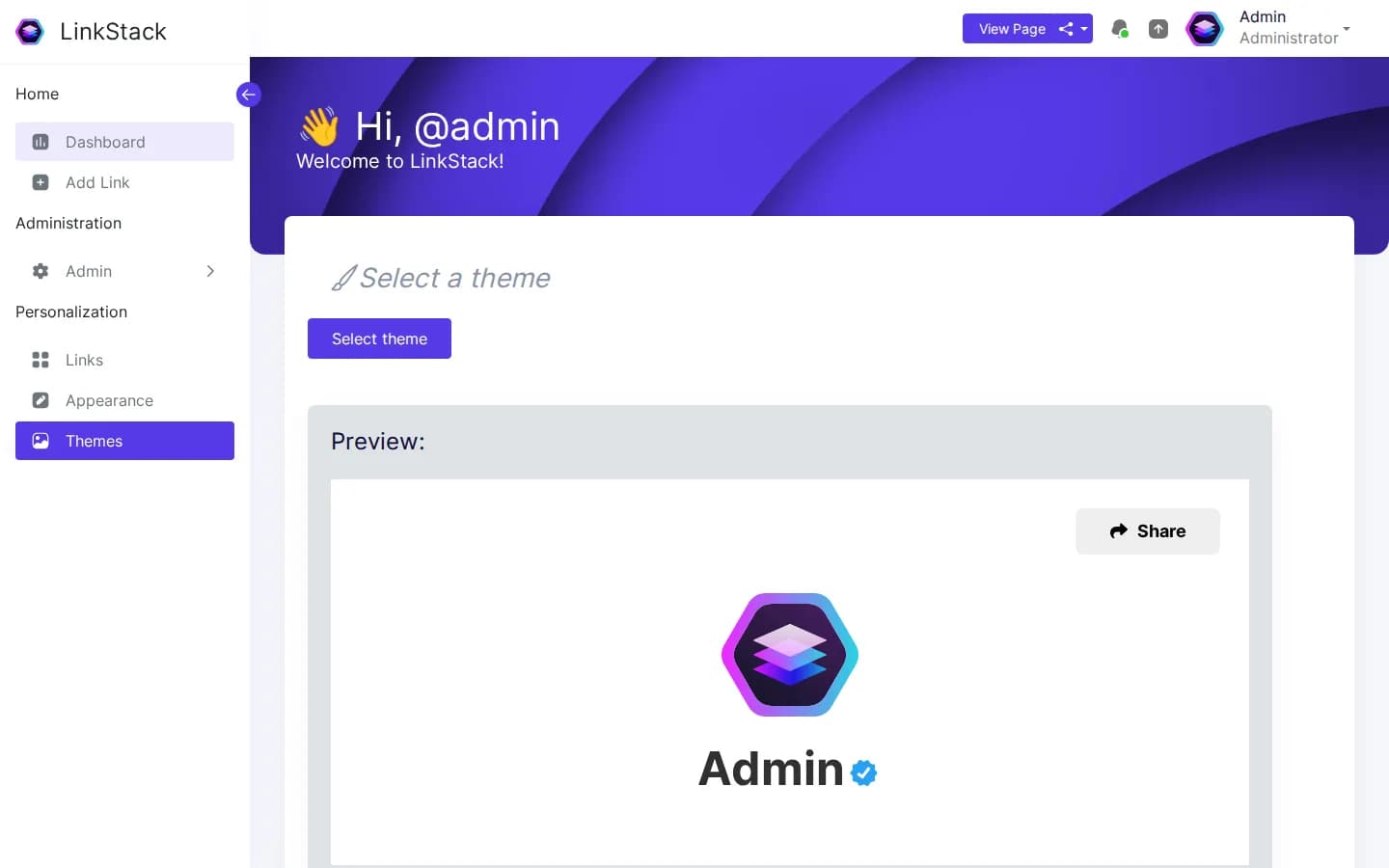
Themes and appearance
Pick a theme and adjust how your link page looks on mobile and desktop.
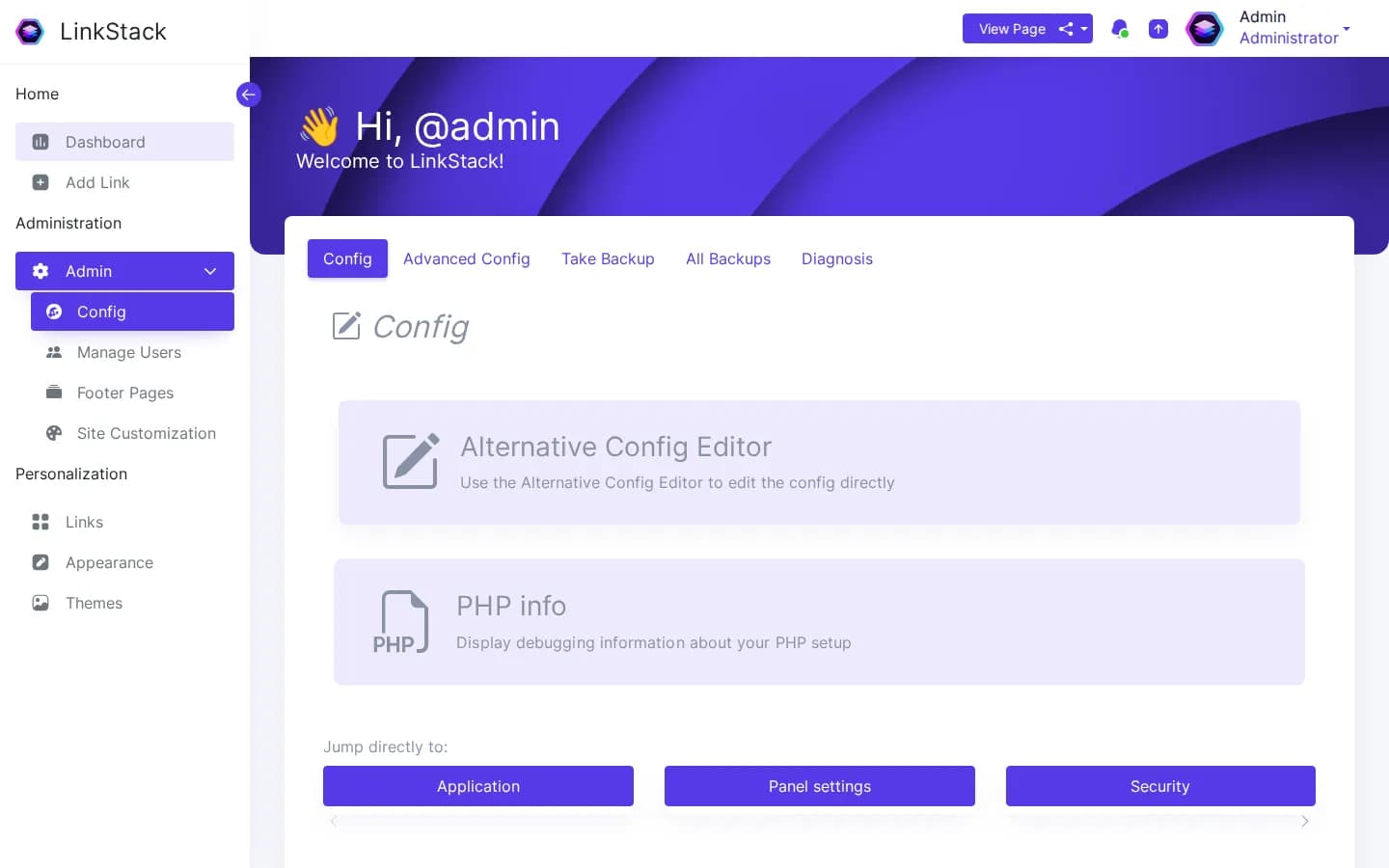
Admin settings
Manage users, registration and site options from the admin panel after first login.
Why use the NodeRings marketplace?
Compare live LinkStack VPS plans from independent providers, then self-host a link-in-bio page on the offer you pick. Use it instead of paying for Linktree.
Compare LinkStack VPS offers in one place
See live prices, regions and plan sizes before you buy. Shop link-in-bio hosts across independent providers, including small 1 GB boxes that fit LinkStack well.
Self-host LinkStack without a manual install
Pick a plan and LinkStack is prepared on that VPS for you, including the admin account. You still get root access.
Put your bio page nearer your audience
Compatible offers list cities and countries. Latency for the public page follows the region you pick.
Own the page and the links
Themes, links and uploads live on your VPS volume. You control SSH, DNS and who can sign in.
LinkStack hosting as a marketplace, not a single hoster
Most LinkStack VPS pages sell one company's servers. NodeRings lists Compute Instance plans from independent providers so you can compare self-hosted link-in-bio offers by price, size and region, then launch on the one that fits.
Linkstack Instant App prepares LinkStack on the provider VPS you selected. NodeRings does not operate that hardware or sell its own VPS fleet.
Single-provider LinkStack hosting
- One company catalogue and renewal pricing
- One set of regions and support paths
- One vendor panel for that host only
NodeRings marketplace
- LinkStack VPS offers from independent providers
- Compare resources, prices and regions side by side
- Deploy LinkStack on the plan you pick
How it works
Compare plans, pick a provider offer, and launch Linkstack on that server.
01
Compare LinkStack VPS plans
Browse live offers below. A 1 GB plan is a solid start for LinkStack with SQLite. Sort by provider, size, price and region.
02
Pick the offer that fits
Choose the provider plan and region. There are no Instant App form fields to fill for LinkStack.
03
Deploy and sign in
Confirm checkout and wait for the server. Then open http://YOUR_IP/login and sign in with linkstack_admin_email and linkstack_admin_pass from your server notes. You keep root SSH.
On the VPS after LinkStack deploys
NodeRings Instant App brings LinkStack up with Docker Compose and finishes the installer with an admin account. Use the sections below to reach the UI, find passwords, and operate the stack.
Open the web UI
- In a browser, go to http://YOUR_SERVER_IP/login using the IPv4 from your order.
- Sign in with linkstack_admin_email and linkstack_admin_pass from the credentials file.
- Edit your public page and open http://YOUR_SERVER_IP/@admin (or your handle) to preview it.
Where the password is
Credentials are written on first boot to:
/root/.noderings_passwordRead them over SSH:
cat /root/.noderings_password- Keys in that file include linkstack_admin_email, linkstack_admin_pass, linkstack_admin_handle and site_url.
- The default admin email is [email protected] and the handle is admin.
- SSH in as root with the create-flow password or key, then run the command above.
- The installer creates the admin once; later boots keep the same account.
Where files live
Compose project directory
/opt/noderings/linkstack
/opt/noderings/linkstack/docker-compose.yml
/opt/noderings/linkstack/.env
Working directory for compose, the stack file, and generated secrets.
Credentials file
/root/.noderings_passwordWritten once on first boot.
Boot unit
/etc/systemd/system/noderings-linkstack.serviceBrings compose up after Docker is ready.
Install log
/tmp/linkstack-admin.logInstaller and login probe output.
What runs in Docker
Compose runs LinkStack with an embedded SQLite database. The UI is on HTTP port 80.
linkstackLinkStack web UI on HTTP port 80.
Container status
cd /opt/noderings/linkstack && docker compose psLive logs
cd /opt/noderings/linkstack && docker compose logs -fRestart containers
cd /opt/noderings/linkstack && docker compose restartHealth probe
curl -sS -o /dev/null -w '%{http_code}\n' http://127.0.0.1/systemd unit status
systemctl status noderings-linkstackAdd HTTPS with Cloudflare
Your LinkStack app starts on http://. Cloudflare can give visitors a padlock without installing anything on the VPS.
Add your domain
Sign up at Cloudflare and add the domain you want to use.
Point it at your VPS
Create an A record to your server IP and leave the orange cloud on.
Open the https site
Visit https://your-domain/login and sign in with the admin credentials from your server notes.
Only allow Cloudflare
Optional. With SSH (port 22) already allowed and everything else blocked by default, open only Cloudflare to ports 80 and 443:
curl -s https://www.cloudflare.com/ips-v4 | while read ip; do sudo ufw allow from "$ip" to any port 80,443 proto tcp; done
Keep port 22 allowed for SSH. Update HTTP_SERVER_NAME and HTTPS_SERVER_NAME in /opt/noderings/linkstack/.env when you attach a real hostname.
More detail
- NodeRings does not sell LinkStack as a product and is not the LinkStack project.
LinkStack VPS requirements and sizing
LinkStack runs as a single Docker app with SQLite. A personal bio page needs about 1 GB of RAM; heavier themes and uploads need more disk. These are starting points, not guarantees.
| Workload | Illustrative starting point | Note |
|---|---|---|
| Personal link-in-bio | 1 vCPU / 1 GB RAM / 20+ GB disk | Suggested Instant App floor for LinkStack with SQLite. |
| Brand page with uploads | 1–2 vCPU / 2 GB RAM | More headroom when you host larger images or many buttons. |
| Team with a few editors | 2 GB RAM recommended | Extra users add a little load on the admin desk. |
| Theme and media growth | Disk sized to uploads | Images and backups grow the data volume. Keep copies off-box. |
These are starting points, not guarantees. Needs depend on traffic and media size.
Root access and who does what
This is self-hosted LinkStack on a provider VPS, not managed Linktree. You pick the plan. LinkStack is prepared on that server. Day-to-day care stays with you.
What you get ready
LinkStack is prepared on the VPS with no Instant App form variables. The installer creates the admin account and turns registration off. Marketplace listing covers compatible Compute Instance plans and create-flow credentials for root SSH.
What you keep
Root SSH on the VPS. You own links, themes, users, DNS, TLS, OS updates and backups unless a provider product says otherwise.
What is not included
Managed SMTP, automatic TLS and support SLAs are not bundled in. Finish TLS after the server is up if you need it.
Support boundaries
NodeRings helps with marketplace, billing and console. Provider hardware issues go to that provider. Looking after LinkStack on the server is yours.
Linkstack VPS FAQs
What is LinkStack?
LinkStack is a free, open-source link-in-bio page. It focuses on a customizable public profile with buttons and themes on hardware you control.
Do I need to fill Instant App variables for LinkStack?
No. Linkstack Instant App asks for no form variables at create time. After the VPS is ready, sign in with the admin email and password from your server notes.
Does NodeRings run the LinkStack server?
No. NodeRings is a marketplace. Independent providers list VPS plans. You pick a plan, LinkStack is prepared on that provider server, and you manage the page from there.
Is this managed Linktree hosting?
No. You get a virtual machine with LinkStack prepared for you, plus root access. That is different from a managed product that owns updates and support for you.
What is Linkstack Instant App?
It prepares LinkStack on the VPS you choose so you skip hunting through install guides by hand. It is still your self-hosted server, not a separate managed hosting brand.
How do I sign in after deploy?
Open http://YOUR_IP/login and sign in with linkstack_admin_email and linkstack_admin_pass from /root/.noderings_password.
What size LinkStack VPS do I need?
A common starting point is about 1 vCPU, 1 GB RAM and 20 GB disk. Heavier media usually needs more disk. Use the sizing guide above and compare plans in the list.
What happens after I click Deploy Linkstack?
You confirm the plan and finish checkout. When the server is ready, open the login URL and sign in with the admin credentials from your server notes.
Can I choose the server region?
Yes. Each compatible plan lists available regions. Pick the city or country that matches latency and compliance needs.
Can strangers register on my instance?
No by default. Instant App finishes setup with registration turned off. You can change that later in admin settings if you want.