
IT-Tools Instant App
Self-hosted IT-Tools VPS hosting
IT-Tools is an open-source collection of converter, encoder, hash and network utilities that run in the browser. Compare live VPS prices, CPU, RAM, disk and regions, launch IT-Tools on the plan you choose, and keep root access so your toolbox stays on your server.

IT-Tools
Instant App on marketplace VPS
Live marketplace offers
Compare IT-Tools VPS plans
Choose billing and size, compare providers side by side, pick a location, then launch.
Inside IT-Tools
IT-Tools is a self-hosted kit of converters, encoders, hash helpers and network checkers. Use it instead of paying for online utility sites. Sign in with HTTP basic auth after boot, open a tool, and work in the browser. No Instant App form fields are required at create time.
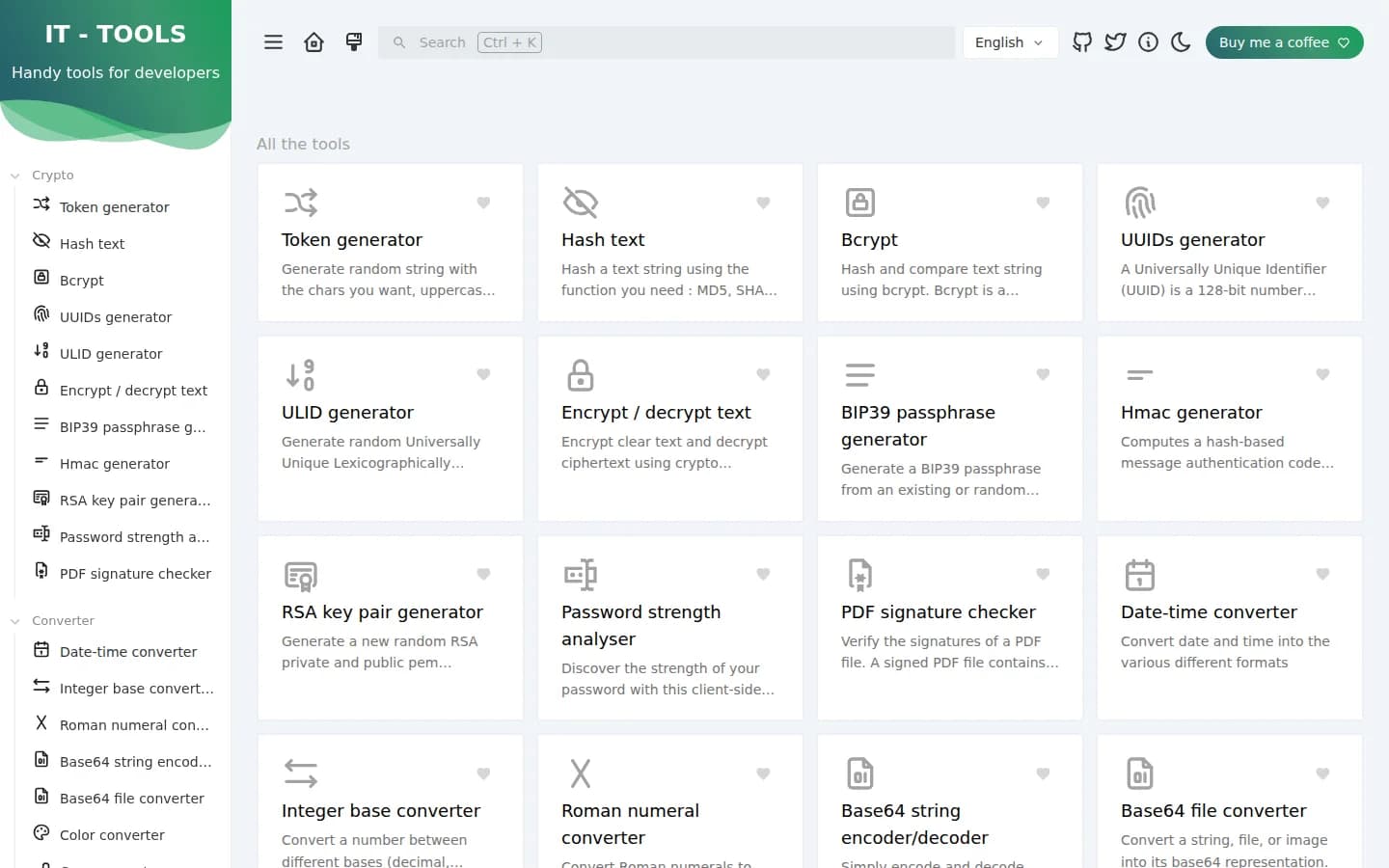
Protected toolbox after login
Open IT-Tools and sign in with the prepared HTTP basic auth credentials. The utilities stay behind a password on your VPS.
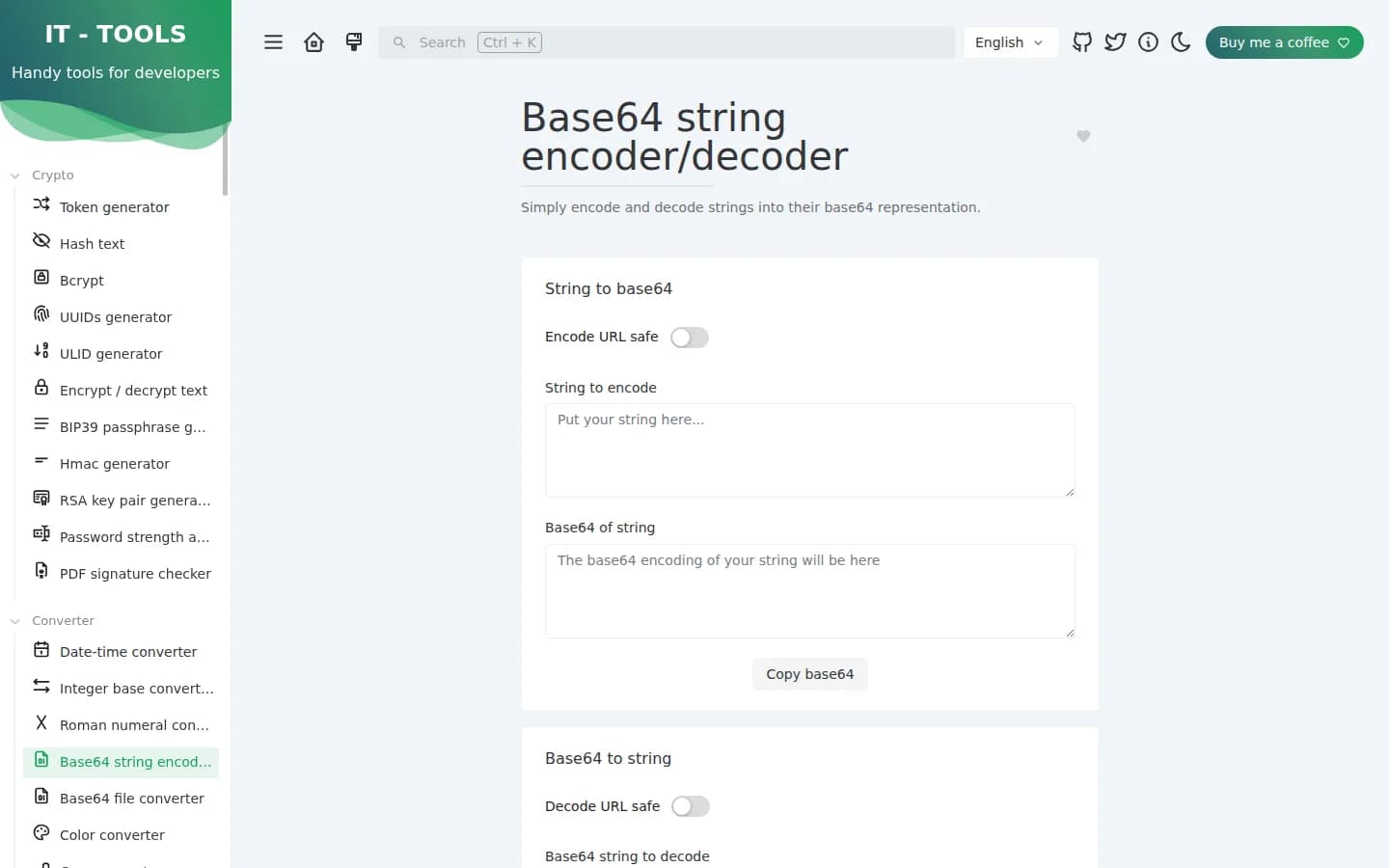
Convert and encode
Base64, URL, JWT and text converters without pasting secrets into a random SaaS form.
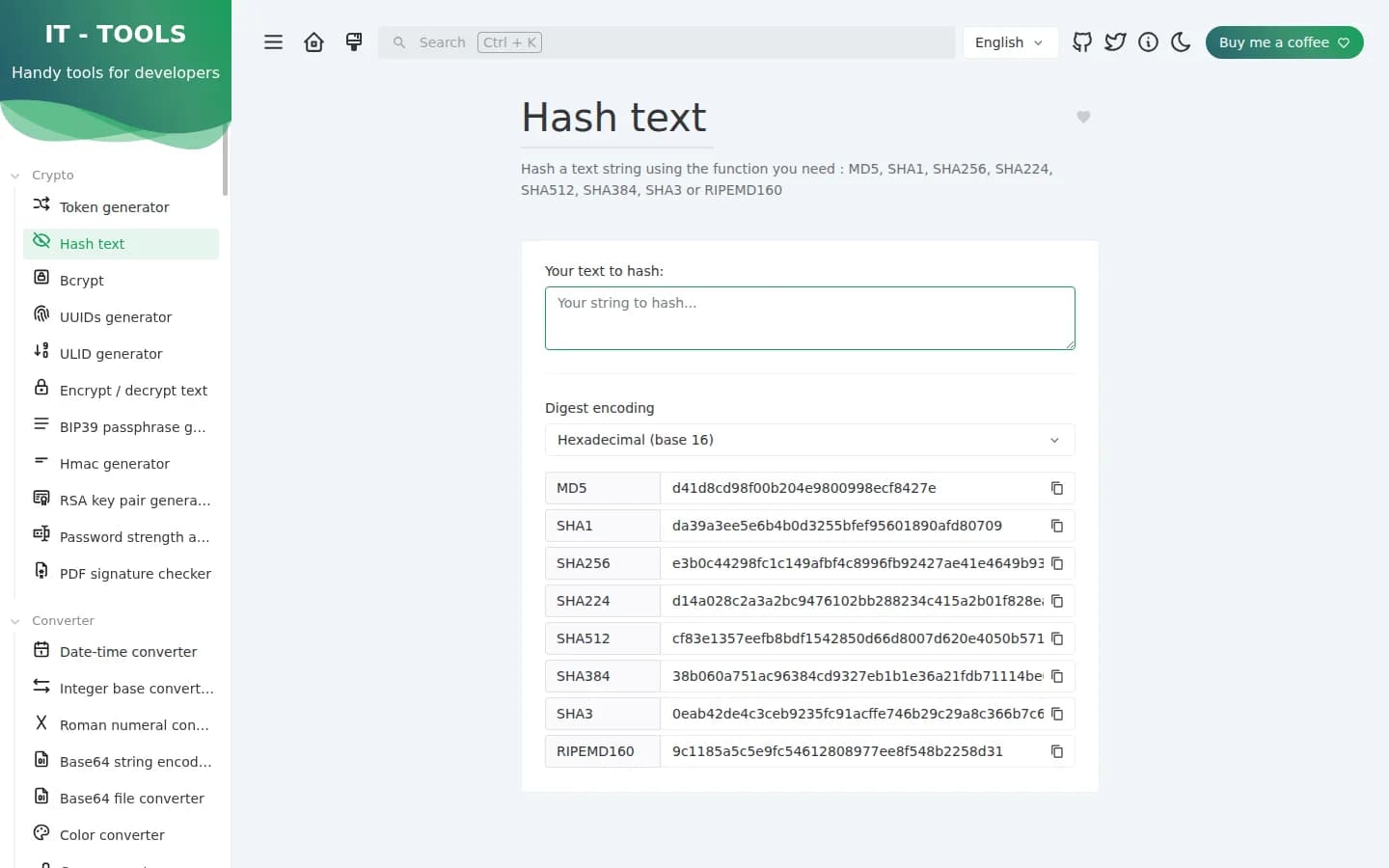
Hash and crypto helpers
Hash, UUID, password and token helpers run in the browser session on your host.
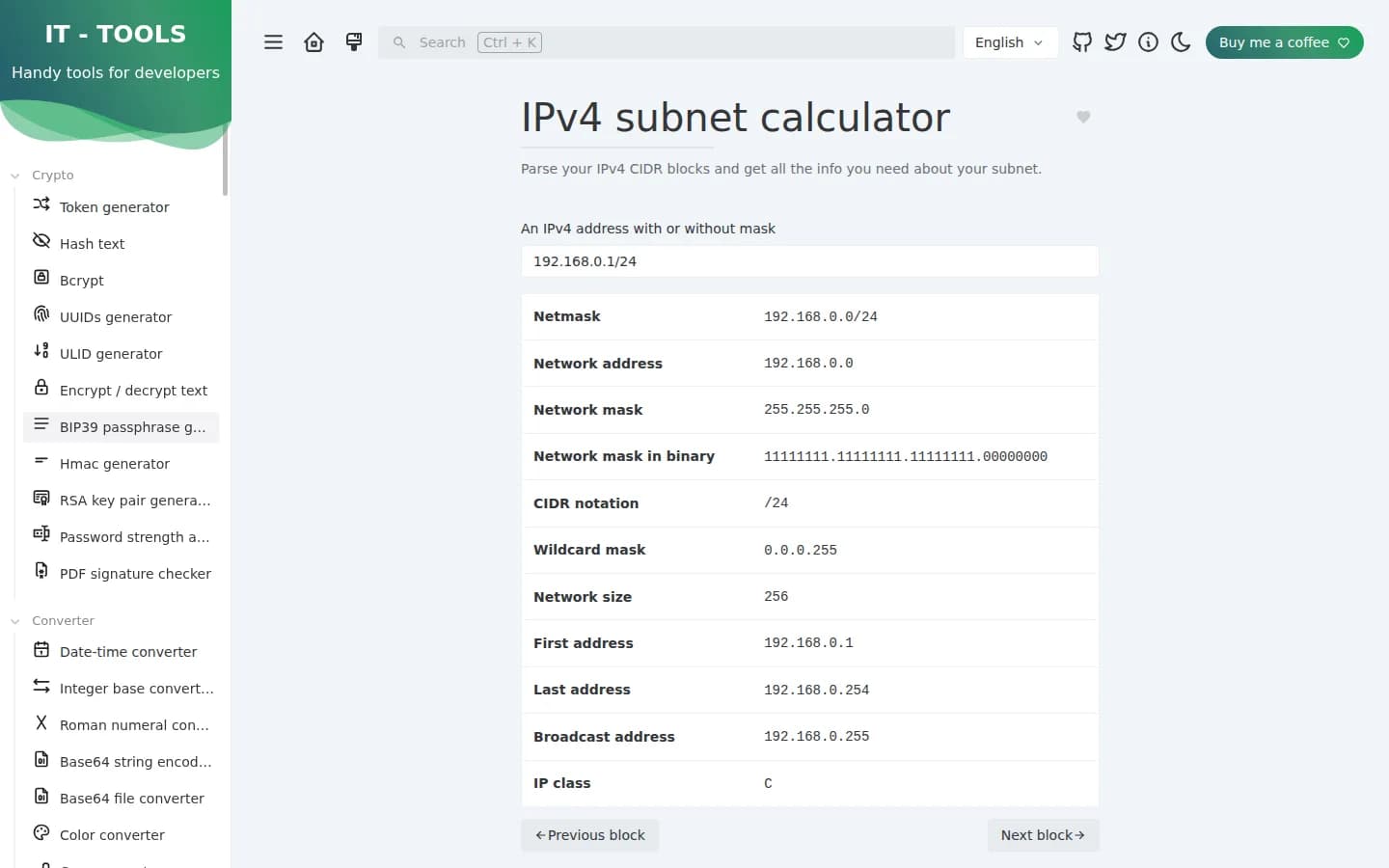
Network and developer checks
IPv4/IPv6, user-agent, JSON and cron helpers for day-to-day ops work.
Why use the NodeRings marketplace?
Compare live IT-Tools VPS plans from independent providers, then self-host a developer utility kit on the offer you pick. Use it instead of paying for online utility sites.
Compare IT-Tools VPS offers in one place
See live prices, regions and plan sizes before you buy. Shop developer-utility hosts across independent providers, including 1 GB boxes that fit IT-Tools.
Self-host IT-Tools without a manual install
Pick a plan and IT-Tools is prepared on that VPS for you, including HTTP basic auth. You still get root access.
Put utilities in a region you choose
Compatible offers list cities and countries. Keep latency low for the team or keep the toolbox in a place that matches policy.
Run converters on a host you control
IT-Tools runs tools client-side after you authenticate. You control SSH, DNS and who can open the toolkit.
IT-Tools hosting as a marketplace, not a single hoster
Most IT-Tools VPS pages sell one company's servers. NodeRings lists Compute Instance plans from independent providers so you can compare self-hosted utility offers by price, size and region, then launch on the one that fits.
IT-Tools Instant App prepares IT-Tools on the provider VPS you selected. NodeRings does not operate that hardware or sell its own VPS fleet.
Single-provider IT-Tools hosting
- One company catalogue and renewal pricing
- One set of regions and support paths
- One vendor panel for that host only
NodeRings marketplace
- IT-Tools VPS offers from independent providers
- Compare resources, prices and regions side by side
- Deploy IT-Tools on the plan you pick
How it works
Compare plans, pick a provider offer, and launch IT-Tools on that server.
01
Compare IT-Tools VPS plans
Browse live offers below. A 1 GB plan is a solid start for IT-Tools. Sort by provider, size, price and region.
02
Deploy IT-Tools on the plan you pick
Finish checkout on that provider offer. IT-Tools and HTTP basic auth are prepared on the VPS for you.
03
Sign in and use the tools
Open the site URL, enter ittools_admin_user and ittools_admin_pass from your server notes, then open any utility in the browser.
On the VPS after IT-Tools deploys
NodeRings Instant App brings IT-Tools up with Docker and HTTP basic auth. Use the sections below to reach the UI, find passwords, and operate the stack.
Open the web UI
- In a browser, go to http://YOUR_SERVER_IP/ using the IPv4 from your order.
- Enter ittools_admin_user and ittools_admin_pass from the credentials file when the browser asks for HTTP basic auth.
- Pick a tool and use it in the browser.
Where the password is
Credentials are written on first boot to:
/root/.noderings_passwordRead them over SSH:
cat /root/.noderings_password- Keys in that file include ittools_admin_user, ittools_admin_pass and site_url.
- SSH in as root with the create-flow password or key, then run the command above.
- Change the basic-auth password after first login.
Where files live
Compose project directory
/opt/noderings/it-tools
/opt/noderings/it-tools/docker-compose.yml
/opt/noderings/it-tools/.env
/opt/noderings/it-tools/nginx.conf
Working directory for compose, the stack file, generated secrets and nginx basic-auth config.
Credentials file
/root/.noderings_passwordWritten once on first boot.
Boot unit
/etc/systemd/system/noderings-it-tools.serviceBrings compose up after Docker is ready.
What runs in Docker
Compose runs IT-Tools behind nginx with HTTP basic auth. The toolkit is on HTTP port 80.
it-toolsIT-Tools static UI and client-side utilities.
proxynginx with HTTP basic auth on port 80.
Container status
cd /opt/noderings/it-tools && docker compose psLive logs
cd /opt/noderings/it-tools && docker compose logs -fRestart containers
cd /opt/noderings/it-tools && docker compose restartsystemd unit status
systemctl status noderings-it-toolsAdd HTTPS with Cloudflare
Your IT-Tools toolbox starts on http://. Cloudflare can give visitors a padlock without installing anything on the VPS.
Add your domain
Sign up at Cloudflare and add the domain you want to use.
Point it at your VPS
Create an A record to your server IP and leave the orange cloud on.
Open the https site
Visit https://your-domain/ and sign in with the basic-auth credentials from your server notes.
Only allow Cloudflare
Optional. With SSH (port 22) already allowed and everything else blocked by default, open only Cloudflare to ports 80 and 443:
curl -s https://www.cloudflare.com/ips-v4 | while read ip; do sudo ufw allow from "$ip" to any port 80,443 proto tcp; done
Keep port 22 allowed for SSH. Leave other ports denied except this Cloudflare allow for 80 and 443.
More detail
- NodeRings does not sell IT-Tools as a product and is not the IT-Tools project.
Root access and who does what
This is self-hosted IT-Tools on a provider VPS, not managed utility SaaS. You pick the plan. IT-Tools is prepared on that server. Day-to-day care stays with you.
What you get ready
IT-Tools is prepared on the VPS with HTTP basic auth and no Instant App form variables. Marketplace listing covers compatible Compute Instance plans and create-flow credentials for root SSH.
What you keep
Root SSH on the VPS. You own provider billing, DNS, TLS, firewall choices, changing the basic-auth password and keeping the toolkit updated.
What is not included
Managed IT-Tools support, SaaS-style care plans, guaranteed uptime or backups beyond what the provider offer states, and storing your data on NodeRings infrastructure are not bundled in.
Support boundaries
NodeRings helps with marketplace, billing and console. Provider hardware issues go to that provider. Looking after IT-Tools on the server is yours.
IT-Tools VPS FAQs
Is this managed IT-Tools hosting?
No. You get a virtual machine with IT-Tools prepared for you, plus root access. That is different from an online utility SaaS or a managed product that owns updates and support for you.
What is IT-Tools Instant App?
It prepares IT-Tools on the VPS you choose so you skip hunting through install guides by hand. It is still your self-hosted server, not a separate managed hosting brand.
How do I sign in after deploy?
Open http://YOUR_IP/ and enter ittools_admin_user and ittools_admin_pass from /root/.noderings_password when the browser asks for HTTP basic auth.
Does IT-Tools send my input to a third party?
Tools run in the browser after the page loads. Prefer HTTPS on a public hostname and change the basic-auth password after first login.
What size IT-Tools VPS do I need?
A common starting point is about 1 vCPU, 1 GB RAM and 20 GB disk. Use the sizing guide above and compare plans in the list.
What happens after I click Deploy IT-Tools?
You confirm the plan and finish checkout. When the server is ready, open the site URL and sign in with the basic-auth credentials from your server notes.
Can I choose the server region?
Yes. Each compatible plan lists available regions. Pick the city or country that matches latency and compliance needs.