
Dockge Instant App
Self-hosted Dockge VPS hosting
Dockge is a reactive UI for docker compose stacks on your own host. Compare live VPS prices, CPU, RAM, disk and regions, launch Dockge on the plan you choose, and keep root access.

Dockge
Instant App on marketplace VPS
Live marketplace offers
Compare Dockge VPS plans
Choose billing and size, compare providers side by side, pick a location, then launch.
Inside Dockge
Dockge is a self-hosted UI for docker compose stacks on a single VPS. Use it instead of paying for Portainer Business or a managed Compose console. From the browser you create, edit, start and update compose.yaml stacks on that host. The files stay on disk as ordinary compose projects.
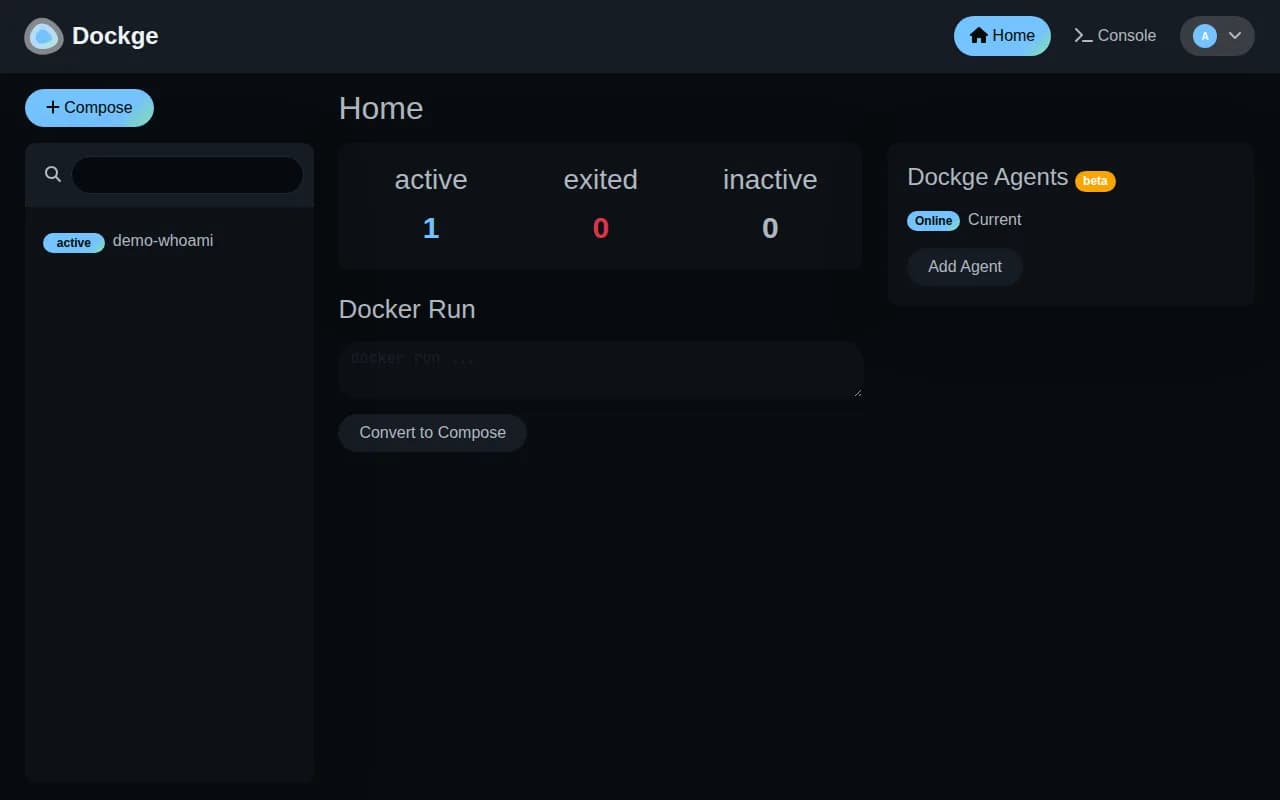
Compose stacks on this host
After you sign in, manage compose.yaml projects on that VPS. Create, edit, start, stop and update stacks from the UI. Root SSH is still there when you want the shell.
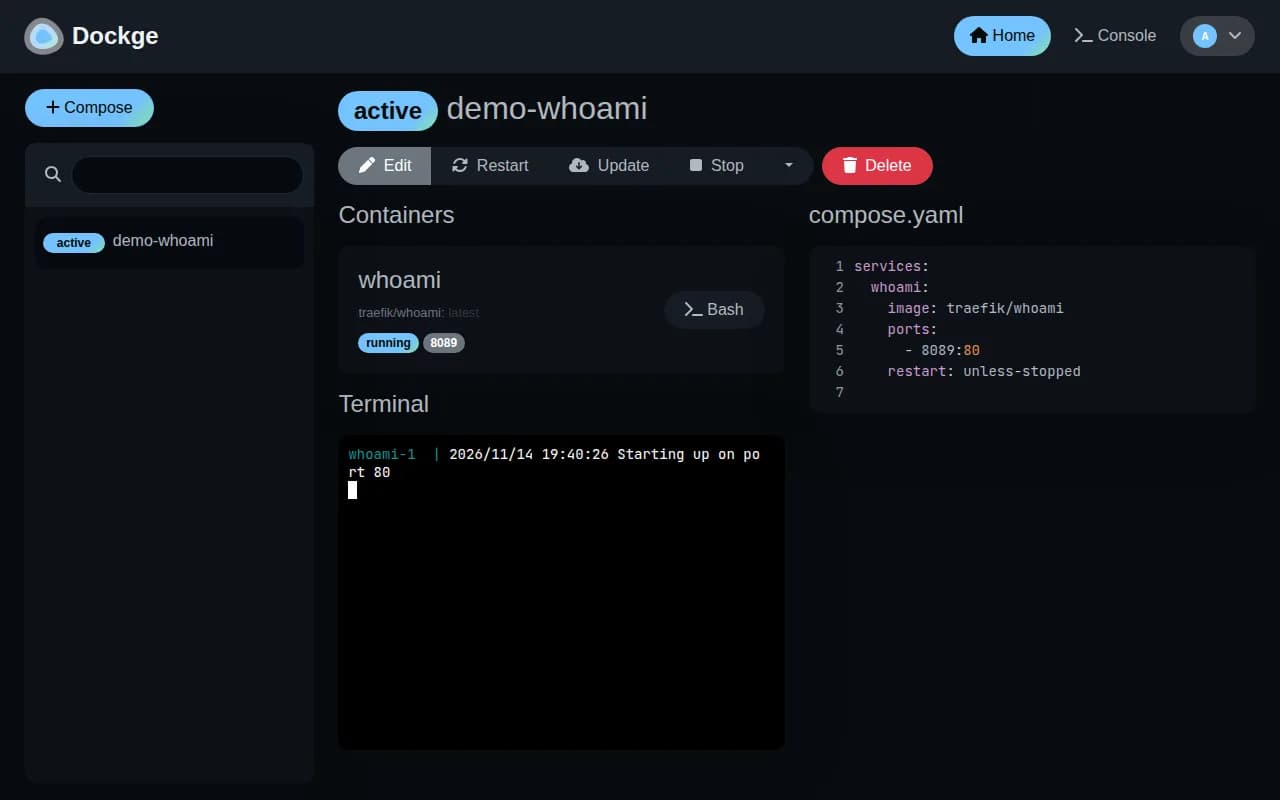
Files stay on disk
Stacks live under /opt/stacks as normal directories. You can still use docker compose on the host without the UI kidnapping your files.
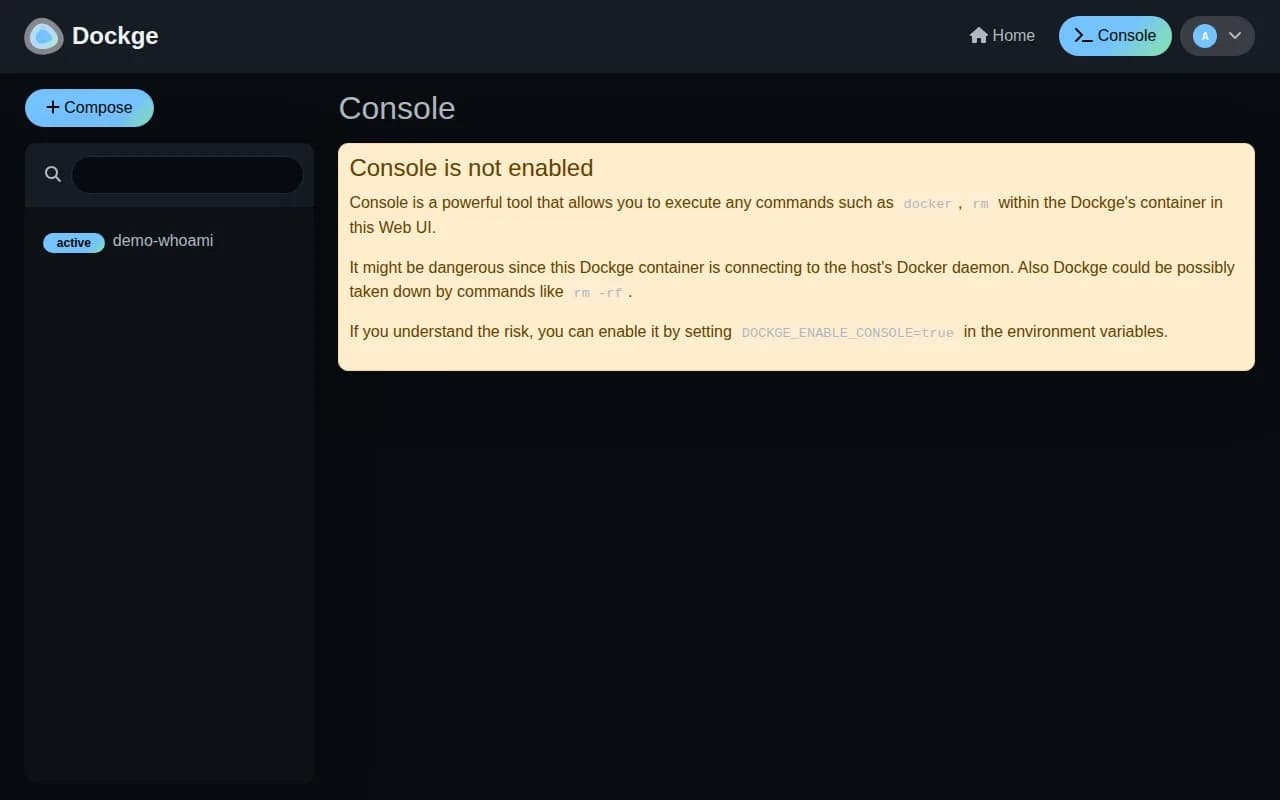
Reactive progress
Pulls, ups and downs stream into the UI so you see progress without tailing logs by hand.
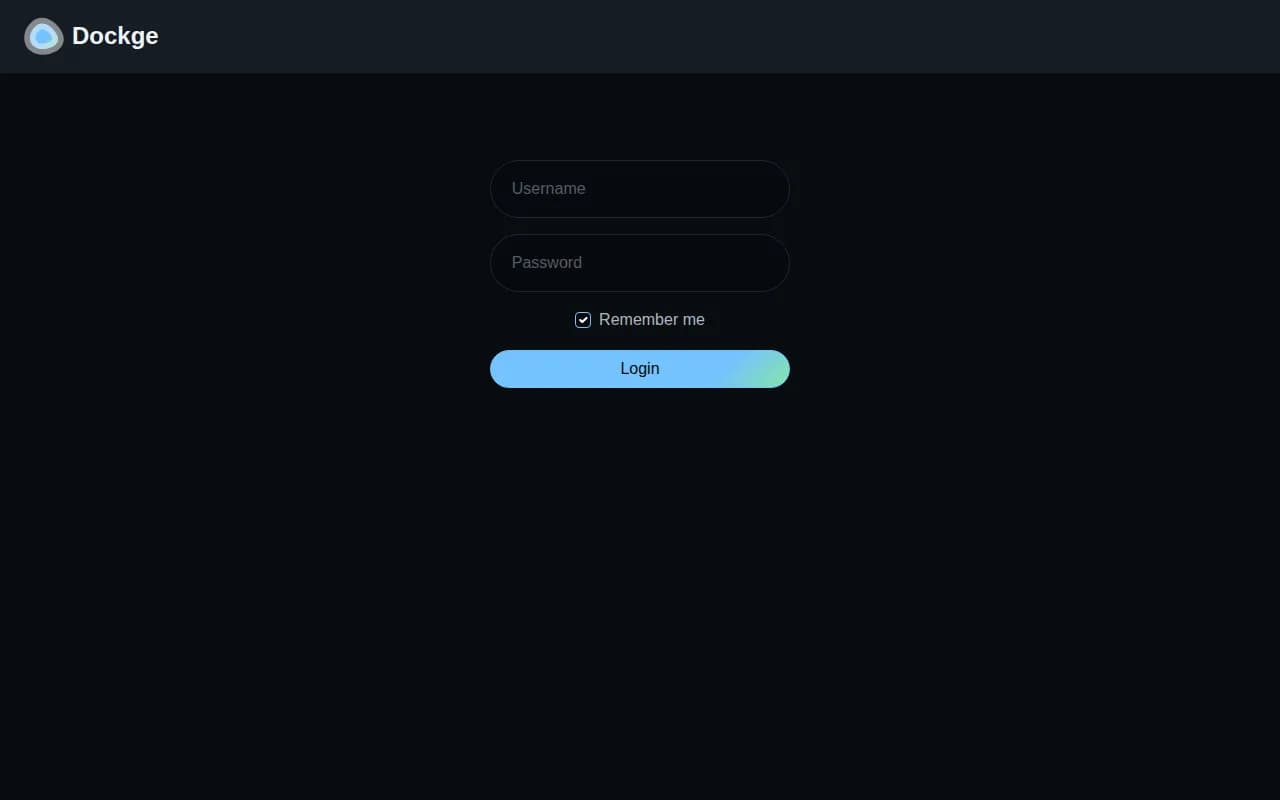
Admin prepared for you
The first admin account is created on boot. Public setup closes after that, so strangers cannot claim the UI.
Why use the NodeRings marketplace?
Compare live Dockge VPS plans from independent providers, then self-host a compose.yaml stack manager on the offer you pick. Use it instead of paying for Portainer Business or a managed Compose UI.
Compare Dockge VPS offers in one place
See live prices, regions and plan sizes before you buy. Shop Docker hosts with Dockge across independent providers, from the 1 vCPU and 1 GB floor upward.
Self-host compose stacks without a manual install
Pick a plan and Dockge is prepared on that VPS for you, with Docker and a stacks directory ready. You still get root access for the shell.
Put the host nearer the people who use the apps
Compatible offers list cities and countries. Dockge's own clicks are light. The stacks you run are what visitors feel, so pick the region for those apps.
Own the compose files on disk
Stacks stay as normal compose.yaml trees under /opt/stacks. You control SSH, who can open the UI, and how you back the disk up.
Dockge hosting as a marketplace, not a single hoster
Most Dockge or Compose UI pages sell one company's servers. NodeRings lists Compute Instance plans from independent providers so you can compare Dockge-ready offers by price, size and region, then launch on the one that fits.
Dockge Instant App prepares Dockge on the provider VPS you selected. NodeRings does not operate that hardware or sell its own VPS fleet.
Single-provider Dockge hosting
- One company catalogue and renewal pricing
- One set of regions and support paths
- One vendor panel for that host only
NodeRings marketplace
- Dockge VPS offers from independent providers
- Compare resources, prices and regions side by side
- Deploy Dockge on the plan you pick
How it works
Compare plans, pick a provider offer, and launch Dockge on that server.
01
Compare Dockge VPS plans
Browse live offers below. Every general-compute plan is listed — pick the size you want. Size the plan for the stacks you intend to run, not for the UI alone.
02
Pick the offer that fits
Choose the provider plan and region. The compose projects you want on the host come after you sign in.
03
Deploy and sign in
Confirm checkout and wait for the server. Then open the Dockge address in your server notes and sign in with the admin username and password stored there. You keep root SSH.
On the VPS after Dockge deploys
NodeRings Instant App brings Dockge up with Docker Compose and prepares the first admin for you. Use the sections below to reach the UI, find passwords, and operate the stack.
Open the web UI
- In a browser, go to http://YOUR_SERVER_IP/ using the IPv4 from your order.
- Sign in with dockge_admin_user and dockge_admin_pass from the credentials file.
- Create or import compose stacks under /opt/stacks after login.
Where the password is
Credentials are written on first boot to:
/root/.noderings_passwordRead them over SSH:
cat /root/.noderings_password- Keys in that file include dockge_admin_user, dockge_admin_pass, site_url and stacks_dir.
- SSH in as root with the create-flow password or key, then run the command above.
- Change the admin password after you first sign in if you prefer a new secret.
Where files live
Compose project directory
/opt/noderings/dockge
/opt/noderings/dockge/docker-compose.yml
/opt/noderings/dockge/.env
Working directory for compose, secrets and Dockge data.
Stacks directory
/opt/stacksNormal compose.yaml projects managed by Dockge.
Credentials file
/root/.noderings_passwordWritten once on first boot.
Boot unit
/etc/systemd/system/noderings-dockge.serviceBrings compose up after Docker is ready.
What runs in Docker
Compose runs Dockge with the Docker socket attached. The UI is on HTTP port 80. Stacks live under /opt/stacks on the host.
dockgeDockge web UI on HTTP port 80 with access to Docker and /opt/stacks.
Container status
cd /opt/noderings/dockge && docker compose psLive logs
cd /opt/noderings/dockge && docker compose logs -f dockgeRestart containers
cd /opt/noderings/dockge && docker compose restartsystemd unit status
systemctl status noderings-dockgeAdd HTTPS with Cloudflare
Your Dockge UI starts on http://. Cloudflare can give visitors a padlock without installing anything on the VPS.
Add your domain
Sign up at Cloudflare and add the domain you want to use.
Point it at your VPS
Create an A record to your server IP and leave the orange cloud on.
Open the https site
Visit https://your-domain/ and sign in with the admin credentials from your server notes.
Only allow Cloudflare
Optional. With SSH (port 22) already allowed and everything else blocked by default, open only Cloudflare to ports 80 and 443:
curl -s https://www.cloudflare.com/ips-v4 | while read ip; do sudo ufw allow from "$ip" to any port 80,443 proto tcp; done
Keep port 22 allowed for SSH. Leave other ports denied except this Cloudflare allow for 80 and 443.
More detail
- NodeRings does not sell Dockge as a product and is not the Dockge project.
Dockge VPS requirements and sizing
Dockge itself is a light compose UI. Official docs focus on Docker and a stacks path, not a large RAM floor. A quiet lab can start around 1 vCPU, 1 GB RAM and 20 GB disk. Databases, builds and large images in your stacks are what move you to a bigger plan.
| Workload | Illustrative starting point | Note |
|---|---|---|
| Dockge plus a couple of small stacks | 1 vCPU / 1 GB RAM / 20+ GB disk | Suggested start. Enough when the UI and a few light services share the box. |
| Several compose projects | 1 to 2 vCPU / 2 GB RAM | Room for more images, volumes and containers that stay running together. |
| An app host with a database | 2 vCPU / 2 to 4 GB RAM | Databases and build jobs need more headroom than the Dockge UI. Measure the stacks, not the dashboard. |
| Many images or large volumes | Often 2 to 4 vCPU / 4 GB RAM and more disk | Image layers and persistent volumes fill disk first. No universal stack count. |
These are starting points, not guarantees. Needs depend on the stacks, images and volumes you run on the same VPS. Dockge itself stays small.
Root access and who does what
This is self-hosted Dockge on a provider VPS, not managed container hosting. You pick the plan. Dockge is prepared on that server. Day-to-day Docker care stays with you.
What you get ready
Dockge is prepared, an admin account is created, Docker is available, and /opt/stacks is ready for compose projects. Sign in at the address in your server notes with the admin username and password stored there.
What you keep
Root SSH on the VPS. You own DNS, TLS, image updates, volume backups and day-to-day care unless a provider product says otherwise.
What is not included
A domain, TLS certificates, backup jobs and a catalogue of apps are not part of the Instant App. You get Dockge on the one VPS you picked. Extra Docker hosts can be added in Dockge later, on servers you run yourself.
Support boundaries
NodeRings helps with marketplace, billing and console. Provider hardware issues go to that provider. Looking after Dockge and the stacks on the server is yours.
Dockge VPS FAQs
What is Dockge?
Dockge is a self-hosted web UI for docker compose stacks. On this VPS it manages compose.yaml projects on that same host. You sign in from a browser. Root SSH on the server is still yours.
How is Dockge different from Portainer?
Dockge is stack-oriented around compose.yaml files that stay on disk. Portainer is a broader Docker management UI. Both can run on a VPS; pick the workflow you prefer.
Does NodeRings run the Dockge server?
No. NodeRings is a marketplace. Independent providers list VPS plans. You pick a plan, Dockge is prepared on that provider server, and you manage stacks from there.
Is this managed Docker hosting?
No. You get a virtual machine with Dockge prepared for you, plus root access. Images, volumes and day-to-day care remain yours unless a provider product says otherwise.
What is Dockge Instant App?
It prepares Dockge on the VPS you choose, with Docker and a stacks directory, so you skip hunting through the install by hand. It is still your self-hosted host, not a separate managed hosting brand.
What size Dockge VPS do I need?
The UI is small. A quiet host can start around 1 vCPU, 1 GB RAM and 20 GB disk. Size the plan for the stacks, images and volumes you will run. A database or a build on the same host usually wants more.
Where do compose files live?
Under /opt/stacks on the VPS. Dockge expects matching host and container paths so your compose projects stay ordinary files on disk.
What happens after I click Deploy Dockge?
You confirm the plan and finish checkout. When the server is ready, open the Dockge address in your server notes and sign in with the admin username and password stored there. Keep that password private.
Can I manage stacks with docker compose on the shell too?
Yes. Stacks are normal compose directories. Use the UI or the shell — they share the same files under /opt/stacks.
Can I choose the server region?
Yes. Each compatible plan lists available regions. Pick a city near the people who will use the apps on that host.
Who manages server updates and backups?
You do, unless you add backup tooling yourself or a provider product explicitly includes it. Back up the data you cannot recreate, and update the host and the stacks yourself.
Can I move to a larger Dockge VPS later?
You can move to a larger plan from the same or another marketplace provider when stacks or images outgrow the disk and RAM. Volumes do not move themselves.